![[BunsenLabs Logo]](/img/bl.svg)
You are not logged in.
- Topics: Active | Unanswered
#21 2026-09-18 14:12:35
- hhh
- Hercule Poirot

- From: Belgium
- Registered: 2015-09-17
- Posts: 17,713
- Website
Re: (Wayland forky/sid) HowTo: deb packages for niri-wm + Noctalia shell
@unklar, to make audacious open floating, make a window rule for it. First find it's ID by opening audacious, then running 'niri msg windows' in a terminal. Then create a window-rule in ~/.config/niri/config.kdl...
// Open apps in floating windows
window-rule {
    match app-id="audacious"
    open-floating true
    default-column-width { fixed 750; }
    default-window-height { fixed 470; }

}
You can also run 'niri msg layers' to get noctalia namespace IDs. Run 'niri msg outputs' to ID your monitor(s). Run 'niri msg pick-color' to pick a color from your screen. Run 'niri msg --help' to see all msg options.
Note, I've had audacious crash badly using the default GTK settings, I'm having better luck running it using Xwayland (In Audacious: File>Settings>Advanced>Use Xwayland). In that case, 'match app-id="Audacious"', upper-case A.
Here's my laptop's current config.kdl that includes noctalia stuff. I've tried to clean up the default and added some comments, use at as a reference along with https://github.com/niri-wm/niri/blob/ma … config.kdl. Note 'focus-ring' (off), 'border' (// off a.k.a on) in the 'layout' section and 'prefer nocsd' before my layer-rules, you can get a much more unified look than what you have.
spawn-at-startup "/usr/libexec/xdg-desktop-portal-wlr"
// Start Noctalia
spawn-at-startup "noctalia"


input {

    // Use the second option if you like mouse-hover to avtivating windows (I'm not a fan.)
    // warp-mouse-to-focus
    // focus-follows-mouse //  I don't know if this has its own modes, see the Niri docs
    warp-mouse-to-focus mode="center-xy-always"

    keyboard {
        xkb {
            options "caps:none"
        }
    }

    touchpad {
        tap
        // natural-scroll
        accel-speed 0.2
    }

}

output "eDP-1" {
    // off
    mode "1920x1080@60.056"
    scale 1.0
}

output "HDMI-A-1" {
    // off
    mode "1920x1080@60.0"
    scale 1.0
}

// Disable the hot corners.
gestures {
    hot-corners {
        off
    }
}


layout {

    // Set gaps around windows in logical pixels.
    gaps 12

    // When to center a column when changing focus, options are:
    // - "never", default behavior, focusing an off-screen column will keep at the left
    //   or right edge of the screen.
    // - "always", the focused column will always be centered.
    // - "on-overflow", focusing a column will center it if it doesn't fit
    //   together with the previously focused column.
    center-focused-column "never"

    // You can customize the widths that "switch-preset-column-width" (Mod+R) toggles between.
    preset-column-widths {
        // Proportion sets the width as a fraction of the output width, taking gaps into account.
        // For example, you can perfectly fit four windows sized "proportion 0.25" on an output.
        // The default preset widths are 1/3, 1/2 and 2/3 of the output.
        proportion 0.33333
        proportion 0.5
        proportion 0.66667

        // Fixed sets the width in logical pixels exactly.
        // fixed 1920
    }

    // You can also customize the heights that "switch-preset-window-height" (Mod+Ctrl+Shift+R) toggles between.
    // preset-window-heights { }

    // You can change the default width of the new windows.
    default-column-width { proportion 0.5; }
    // If you leave the brackets empty, the windows themselves will decide their initial width.
    // default-column-width {}

    // By default focus ring and border are rendered as a solid background rectangle
    // behind windows. That is, they will show up through semitransparent windows.
    // This is because windows using client-side decorations can have an arbitrary shape.
    //
    // If you don't like that, you should uncomment `prefer-no-csd` below.
    // Niri will draw focus ring and border *around* windows that agree to omit their
    // client-side decorations.
    //
    // Alternatively, you can override it with a window rule called
    // `draw-border-with-background`.

    // You can change how the focus ring looks.
    focus-ring {
        // Uncomment this line to disable the focus ring.
        off

        // How many logical pixels the ring extends out from the windows.
        width 4

        // Colors can be set in a variety of ways:
        // - CSS named colors: "red"
        // - RGB hex: "#rgb", "#rgba", "#rrggbb", "#rrggbbaa"
        // - CSS-like notation: "rgb(255, 127, 0)", rgba(), hsl() and a few others.

        // Color of the ring on the active monitor.
        active-color "#7fc8ff"

        // Color of the ring on inactive monitors.
        //
        // The focus ring only draws around the active window, so the only place
        // where you can see its inactive-color is on other monitors.
        inactive-color "#505050"

        // You can also use gradients. They take precedence over solid colors.
        // Gradients are rendered the same as CSS linear-gradient(angle, from, to).
        // The angle is the same as in linear-gradient, and is optional,
        // defaulting to 180 (top-to-bottom gradient).
        // You can use any CSS linear-gradient tool on the web to set these up.
        // Changing the color space is also supported, check the wiki for more info.
        //
        // active-gradient from="#80c8ff" to="#c7ff7f" angle=45

        // You can also color the gradient relative to the entire view
        // of the workspace, rather than relative to just the window itself.
        // To do that, set relative-to="workspace-view".
        //
        // inactive-gradient from="#505050" to="#808080" angle=45 relative-to="workspace-view"
    }

    // You can also add a border. It's similar to the focus ring, but always visible.
    border {
        // The settings are the same as for the focus ring.
        // If you enable the border, you probably want to disable the focus ring.
        // off

        width 1
        active-color "#ffc87f"
        inactive-color "#505050"

        // Color of the border around windows that request your attention.
        urgent-color "#9b0000"

        // Gradients can use a few different interpolation color spaces.
        // For example, this is a pastel rainbow gradient via in="oklch longer hue".
        //
        // active-gradient from="#e5989b" to="#ffb4a2" angle=45 relative-to="workspace-view" in="oklch longer hue"

        // inactive-gradient from="#505050" to="#808080" angle=45 relative-to="workspace-view"
    }

    // You can enable drop shadows for windows.
    shadow {
        // Uncomment the next line to enable shadows.
        on

        // By default, the shadow draws only around its window, and not behind it.
        // Uncomment this setting to make the shadow draw behind its window.
        //
        // Note that niri has no way of knowing about the CSD window corner
        // radius. It has to assume that windows have square corners, leading to
        // shadow artifacts inside the CSD rounded corners. This setting fixes
        // those artifacts.
        //
        // However, instead you may want to set prefer-no-csd and/or
        // geometry-corner-radius. Then, niri will know the corner radius and
        // draw the shadow correctly, without having to draw it behind the
        // window. These will also remove client-side shadows if the window
        // draws any.
        //
        // draw-behind-window true

        // You can change how shadows look. The values below are in logical
        // pixels and match the CSS box-shadow properties.

        // Softness controls the shadow blur radius.
        softness 20

        // Spread expands the shadow.
        spread 2

        // Offset moves the shadow relative to the window.
        offset x=0 y=0

        // You can also change the shadow color and opacity.
        color "#0007"
    }

    // Struts shrink the area occupied by windows, similarly to layer-shell panels.
    // You can think of them as a kind of outer gaps. They are set in logical pixels.
    // Left and right struts will cause the next window to the side to always be visible.
    // Top and bottom struts will simply add outer gaps in addition to the area occupied by
    // layer-shell panels and regular gaps.
    struts {
        // left 64
        // right 64
        // top 64
        // bottom 64
    }

    background-color "transparent"
}


cursor {
    xcursor-theme "Breeze_Light"
    // xcursor-size 24
    // Hide the cursor after one and a half seconds of inactivity, uncomment to always show the cursor.
    hide-after-inactive-ms 1500
}

animations {
    // Uncomment to turn off all animations.
    // off

    // Slow down all animations by this factor. Values below 1 speed them up instead.
    slowdown 1.25
}


binds {
    // Keys consist of modifiers separated by + signs, followed by an XKB key name
    // in the end. To find an XKB name for a particular key, you may use a program
    // like wev.
    //
    // "Mod" is a special modifier equal to Super when running on a TTY, and to Alt
    // when running as a winit window.
    //
    // Most actions that you can bind here can also be invoked programmatically with
    // `niri msg action do-something`.

    Mod+O repeat=false { toggle-overview; }

    Mod+Q repeat=false { close-window; }

    Mod+Left  { focus-column-left; }
    Mod+Down  { focus-window-down; }
    Mod+Up    { focus-window-up; }
    Mod+Right { focus-column-right; }
    Mod+H     { focus-column-left; }
    Mod+J     { focus-window-down; }
    Mod+K     { focus-window-up; }
    Mod+L     { focus-column-right; }

    Mod+Ctrl+Left  { move-column-left; }
    Mod+Ctrl+Down  { move-window-down; }
    Mod+Ctrl+Up    { move-window-up; }
    Mod+Ctrl+Right { move-column-right; }
    Mod+Ctrl+H     { move-column-left; }
    Mod+Ctrl+J     { move-window-down; }
    Mod+Ctrl+K     { move-window-up; }
    Mod+Ctrl+L     { move-column-right; }

    // Alternative commands that move across workspaces when reaching
    // the first or last window in a column.
    // Mod+J     { focus-window-or-workspace-down; }
    // Mod+K     { focus-window-or-workspace-up; }
    // Mod+Ctrl+J     { move-window-down-or-to-workspace-down; }
    // Mod+Ctrl+K     { move-window-up-or-to-workspace-up; }

    Mod+Home { focus-column-first; }
    Mod+End  { focus-column-last; }
    Mod+Ctrl+Home { move-column-to-first; }
    Mod+Ctrl+End  { move-column-to-last; }

    Mod+Shift+Left  { focus-monitor-left; }
    Mod+Shift+Down  { focus-monitor-down; }
    Mod+Shift+Up    { focus-monitor-up; }
    Mod+Shift+Right { focus-monitor-right; }
    Mod+Shift+H     { focus-monitor-left; }
    Mod+Shift+J     { focus-monitor-down; }
    Mod+Shift+K     { focus-monitor-up; }
    Mod+Shift+L     { focus-monitor-right; }

    Mod+Shift+Ctrl+Left  { move-column-to-monitor-left; }
    Mod+Shift+Ctrl+Down  { move-column-to-monitor-down; }
    Mod+Shift+Ctrl+Up    { move-column-to-monitor-up; }
    Mod+Shift+Ctrl+Right { move-column-to-monitor-right; }
    Mod+Shift+Ctrl+H     { move-column-to-monitor-left; }
    Mod+Shift+Ctrl+J     { move-column-to-monitor-down; }
    Mod+Shift+Ctrl+K     { move-column-to-monitor-up; }
    Mod+Shift+Ctrl+L     { move-column-to-monitor-right; }

    // And you can also move a whole workspace to another monitor:
    // Mod+Shift+Ctrl+Left  { move-workspace-to-monitor-left; }
    // ...

    Mod+Page_Down      { focus-workspace-down; }
    Mod+Page_Up        { focus-workspace-up; }
    Mod+Ctrl+Page_Down { move-column-to-workspace-down; }
    Mod+Ctrl+Page_Up   { move-column-to-workspace-up; }

    // Cmmands to move just a single window:
    // Mod+Ctrl+Page_Down { move-window-to-workspace-down; }
    // ...

    // Mod+Shift+Page_Down { move-workspace-down; }
    // Mod+Shift+Page_Up   { move-workspace-up; }
    // Mod+Shift+U         { move-workspace-down; }
    // Mod+Shift+I         { move-workspace-up; }

    // You can refer to workspaces by index. However, keep in mind that
    // niri is a dynamic workspace system, so these commands are kind of
    // "best effort". Trying to refer to a workspace index bigger than
    // the current workspace count will instead refer to the bottommost
    // (empty) workspace.
    //
    // For example, with 2 workspaces + 1 empty, indices 3, 4, 5 and so on
    // will all refer to the 3rd workspace.
    Mod+1 { focus-workspace 1; }
    Mod+2 { focus-workspace 2; }
    Mod+3 { focus-workspace 3; }
    Mod+4 { focus-workspace 4; }
    Mod+5 { focus-workspace 5; }
    Mod+6 { focus-workspace 6; }
    Mod+7 { focus-workspace 7; }
    Mod+8 { focus-workspace 8; }
    Mod+9 { focus-workspace 9; }
    Mod+Ctrl+1 { move-column-to-workspace 1; }
    Mod+Ctrl+2 { move-column-to-workspace 2; }
    Mod+Ctrl+3 { move-column-to-workspace 3; }
    Mod+Ctrl+4 { move-column-to-workspace 4; }
    Mod+Ctrl+5 { move-column-to-workspace 5; }
    Mod+Ctrl+6 { move-column-to-workspace 6; }
    Mod+Ctrl+7 { move-column-to-workspace 7; }
    Mod+Ctrl+8 { move-column-to-workspace 8; }
    Mod+Ctrl+9 { move-column-to-workspace 9; }

    // Alternatively, there are commands to move just a single window:
    // Mod+Ctrl+1 { move-window-to-workspace 1; }

    // Switches focus between the current and the previous workspace.
    // Mod+Tab { focus-workspace-previous; }

    // The following binds move the focused window in and out of a column.
    // If the window is alone, they will consume it into the nearby column to the side.
    // If the window is already in a column, they will expel it out.
    Mod+BracketLeft  { consume-or-expel-window-left; }
    Mod+BracketRight { consume-or-expel-window-right; }

    // Consume one window from the right to the bottom of the focused column.
    // Diabled, Noctalia conflict
    // Mod+Comma  { consume-window-into-column; }

    // Expel the bottom window from the focused column to the right.
    Mod+Period { expel-window-from-column; }

    // Cycle through widths set in preset-column-widths.
    // Mod+R { switch-preset-column-width; }
    // Cycling through the presets in reverse order is also possible.
    // Mod+Shift+R { switch-preset-column-width-back; }

    Mod+Ctrl+Shift+R { switch-preset-window-height; }
    Mod+Ctrl+R { reset-window-height; }

    Mod+A { maximize-column; }
    // Mod+Shift+F { fullscreen-window; }

    // While maximize-column leaves gaps and borders around the window,
    // maximize-window-to-edges doesn't: the window expands to the edges of the screen.
    // This bind corresponds to normal window maximizing,
    // e.g. by double-clicking on the titlebar.
    // Mod+M { maximize-window-to-edges; }

    // Expand the focused column to space not taken up by other fully visible columns.
    // Makes the column "fill the rest of the space".
    Mod+Ctrl+F { expand-column-to-available-width; }

    Mod+C { center-column; }

    // Center all fully visible columns on screen.
    Mod+Ctrl+C { center-visible-columns; }

    // Finer width adjustments.
    // This command can also:
    // * set width in pixels: "1000"
    // * adjust width in pixels: "-5" or "+5"
    // * set width as a percentage of screen width: "25%"
    // * adjust width as a percentage of screen width: "-10%" or "+10%"
    // Pixel sizes use logical, or scaled, pixels. I.e. on an output with scale 2.0,
    // set-column-width "100" will make the column occupy 200 physical screen pixels.
    Mod+Minus { set-column-width "-10%"; }
    Mod+Equal { set-column-width "+10%"; }

    // Finer height adjustments when in column with other windows.
    Mod+Shift+Minus { set-window-height "-10%"; }
    Mod+Shift+Equal { set-window-height "+10%"; }

    // Move the focused window between the floating and the tiling layout.
    Mod+V       { toggle-window-floating; }
    Mod+Shift+V { switch-focus-between-floating-and-tiling; }

    // Toggle tabbed column display mode.
    // Windows in this column will appear as vertical tabs,
    // rather than stacked on top of each other.
    Mod+W { toggle-column-tabbed-display; }

    // Actions to switch layouts.
    // Note: if you uncomment these, make sure you do NOT have
    // a matching layout switch hotkey configured in xkb options above.
    // Having both at once on the same hotkey will break the switching,
    // since it will switch twice upon pressing the hotkey (once by xkb, once by niri).
    // Mod+Space       { switch-layout "next"; }
    // Mod+Shift+Space { switch-layout "prev"; }

    Print { screenshot; }
    Ctrl+Print { screenshot-screen; }
    Alt+Print { screenshot-window; }

    // Applications such as remote-desktop clients and software KVM switches may
    // request that niri stops processing the keyboard shortcuts defined here
    // so they may, for example, forward the key presses as-is to a remote machine.
    // It's a good idea to bind an escape hatch to toggle the inhibitor,
    // so a buggy application can't hold your session hostage.
    //
    // The allow-inhibiting=false property can be applied to other binds as well,
    // which ensures niri always processes them, even when an inhibitor is active.
    // Mod+Escape allow-inhibiting=false { toggle-keyboard-shortcuts-inhibit; }

    // The quit action will show a confirmation dialog to avoid accidental exits.
    // Mod+Shift+E { quit; }
    // Ctrl+Alt+Delete { quit; }

    // Powers off the monitors. To turn them back on, do any input like
    // moving the mouse or pressing any other key.
    // Mod+Shift+P { power-off-monitors; }


    // shows a list of important hotkeys.
    Mod+Slash { show-hotkey-overlay; }

    Super+R { spawn "gmrun"; }

    Super+F hotkey-overlay-title="Files" { spawn "nautilus" "-w"; }
    Mod+T hotkey-overlay-title="Terminal" { spawn "gnome-terminal"; }
    Super+B hotkey-overlay-title="Firefox" { spawn "firefox"; }
    Super+E hotkey-overlay-title="Editor" { spawn "gedit" "--new-window"; }


    //Noctalia binds
    // Audio & Brightness
    XF86AudioRaiseVolume { spawn-sh "noctalia msg volume-up"; }
    XF86AudioLowerVolume { spawn-sh "noctalia msg volume-down"; }
    XF86AudioMute { spawn-sh "noctalia msg volume-mute"; }
    XF86MonBrightnessUp { spawn-sh "noctalia msg brightness-up"; }
    XF86MonBrightnessDown { spawn-sh "noctalia msg brightness-down"; }

    // Additional Noctalia binds
    Mod+N hotkey-overlay-title="Noctalia Control Center" { spawn-sh "noctalia msg panel-toggle control-center"; }
    Mod+Shift+N hotkey-overlay-title="Noctalia Settings"{ spawn-sh "noctalia msg settings-toggle"; }
    Mod+Alt+N hotkey-overlay-title="Wallpaper" { spawn-sh "noctalia msg panel-toggle wallpaper"; }
    Mod+Space hotkey-overlay-title="Applications" { spawn-sh "noctalia msg panel-toggle launcher"; }
    Mod+X hotkey-overlay-title="Session Logout" { spawn-sh "noctalia msg panel-toggle session"; }

    // Use Noctalia's window-switcher, the second option is niri' (turn recent-windows 'on' to use, you can use both if you assing different binds for them).
    Super+Tab hotkey-overlay-title="Switch windows" { spawn-sh "noctalia msg window-switcher"; }
}

recent-windows {
    off
}

prefer-no-csd

hotkey-overlay {
    skip-at-startup
}

overview {
    backdrop-color "#26233a"
    workspace-shadow {
    off
  }
}


// Layer rules

layer-rule {
    match namespace="noctalia-(bar)"
    background-effect {
    blur false
    // xray false
  }
}

// Place the regular wallpaper on the backdrop.
layer-rule {
    match namespace="^noctalia-wallpaper"
    place-within-backdrop true
}


// Window Rules

// Opacity and blur

window-rule {
    match is-focused=true
    opacity 0.90
}

window-rule {
    match is-focused=false
    opacity 0.70
}

window-rule {
    draw-border-with-background false
}

window-rule {
  background-effect {
    blur true
    // xray false
  }
}


window-rule {
    match app-id="firefox" is-focused=true
    // draw-border-with-background true
    opacity 1.0
}

window-rule {
    match app-id="gimp" is-focused=true
    opacity 1.0
}

window-rule {
    match app-id="org.gnome.Loupe" is-focused=true
    opacity 1.0
}

window-rule {
    match app-id="celluloid" is-focused=true
    opacity 1.0
}

window-rule {
    match app-id="inkscape" is-focused=true
    opacity 1.0
}


// Open apps in floating windows
window-rule {
    match app-id="org.gnome.Nautilus"
    open-floating true
    default-column-width { fixed 750; }
    default-window-height { fixed 470; }

}

window-rule {
    match app-id="audacious"
    open-floating true
    default-column-width { fixed 750; }
    default-window-height { fixed 470; }

}

window-rule {
    match app-id="gmrun"
    open-floating true
}

window-rule {
    match app-id="org.gnome.Terminal"
    open-floating true
}


// Noctalia window-rules

window-rule {
  // Rounded corners for a modern look.
  geometry-corner-radius 6

  // Clips window contents to the rounded corner boundaries.
  clip-to-geometry true
}

// Floating Noctalia settings window.
window-rule {
  match app-id="dev.noctalia.Noctalia"
  // open-floating true
  // default-column-width { fixed 1080; }
  // default-window-height { fixed 920; }
}

debug {
  // Allows notification actions and window activation from Noctalia.
  honor-xdg-activation-with-invalid-serial
}

include "noctalia.kdl"
A note about niri's blur (used with opacity), if blur is enabled than xray is enabled, it's lower on resources. Uncomment "xray false" if there are glitches.
Putting it all together, Noctalia shell running niri...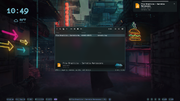
Radio stream: https://kdradio.top/listen/kd_balearic/radio.mp3
Last edited by hhh (2026-09-18 23:22:17)
Why why why why?!!???
Offline
#22 2026-09-18 16:28:31
- hhh
- Hercule Poirot
- From: Belgium
- Registered: 2015-09-17
- Posts: 17,713
- Website
Re: (Wayland forky/sid) HowTo: deb packages for niri-wm + Noctalia shell
I'm not sure if I've mentioned Templates in noctalia-settings yet. Enable GTK3 and 4, QT, niri, and papirus-icons (in Community templates). The last should color folder icons automatically if Papirus is installed to /usr/share/icons and used via GTK Settings, and the papirus-folders script is installed as root...
wget -qO- https://git.io/papirus-folders-install | shIn GTK Settings (nwg-look), disable overwriting the GTK4 file under the 'Preferences" tab.
Why why why why?!!???
Offline
#23 2026-09-19 06:57:28
- unklar
- Back to the roots 1.9

- From: #! BL
- Registered: 2015-10-31
- Posts: 3,159
Re: (Wayland forky/sid) HowTo: deb packages for niri-wm + Noctalia shell
^It's floating... 

Thank you so much for your support!
I remember reading something about the "hated rounded corners" somewhere from you... I'll find it again. 
I'll be back in a week. I have to go to Styria to see my daughter. She's turning 45.
Offline
#24 2026-09-19 16:57:44
- hhh
- Hercule Poirot
- From: Belgium
- Registered: 2015-09-17
- Posts: 17,713
- Website
Re: (Wayland forky/sid) HowTo: deb packages for niri-wm + Noctalia shell
^ More than glad to help. Looks like your running labwc here, I haven't played with that too much so I don't have much input there.
Stay safe, don't accept any invitations to the Saudi Arabian embassy in Turkey while you're there. As a matter of fact, if you even see a bone saw, run as fast as you can. Happy birthday to your daughter! BTW, my paternal grandfather was Syrian (died before I was born, I don't know if it was from a bone saw or not).
Why why why why?!!???
Offline
#25 2026-09-20 05:37:27
- johnraff
- nullglob

- From: Nagoya, Japan
- Registered: 2015-09-09
- Posts: 13,626
- Website
Re: (Wayland forky/sid) HowTo: deb packages for niri-wm + Noctalia shell
Looks like your running labwc here, I haven't played with that too much so I don't have much input there.
What put you off using labwc?
...elevator in the Brain Hotel, broken down but just as well...
( a boring Japan blog (currently paused), now on Bluesky and Mastodon, there's also some GitStuff )
Offline
#26 2026-09-20 16:41:53
- hhh
- Hercule Poirot
- From: Belgium
- Registered: 2015-09-17
- Posts: 17,713
- Website
Re: (Wayland forky/sid) HowTo: deb packages for niri-wm + Noctalia shell
hhh wrote:Looks like your running labwc here, I haven't played with that too much so I don't have much input there.
What put you off using labwc?
This is a difficult question. I'm not put off so much as I'm exploring the options.
You may have noticed that while doing the themes for BL carbon and adding my input, and before that even, I had been using Debian stable or sid instead of BL. I've been on Wayland for at least three years now (probably four) because my laptop's cheap Intel integrated GPU gave me better video performance out of the box using Wayland than any tweaking of xorg configs ever did. libinput takes care of my touchpad for me? Sign me up! I don't think of it as being put off, I think of it as, I believe, @corenominal did when he created and then left #! crunchbang... this is good, let's see if I can tweak it some more. I posted this here over a decade ago (it's been awhile, eh?)
https://forums.bunsenlabs.org/viewtopic.php?id=6407
That said, when progress happens, some things get left behind, and for me, CrunchBang is something that I need to leave behind. I’m leaving it behind because I honestly believe that it no longer holds any value, and whilst I could hold on to it for sentimental reasons, I don’t believe that would be in the best interest of its users, who would benefit from using vanilla Debian.
He misspoke calling it something of little value (and who the hell still says 'whilst'? Jolly good, old chap!), for me it had tremendous value... I wasn't put off, I was turned ON! Using #!, and us continuing it with BL, showed us the foundations of a GNU-Linux desktop, how you could go with a standard desktop like Xfce or piece together a desktop on your own (all credit to Xfce for making their components somewhat modular, you don't need to use the XFCE desktop to use its notifications or power manager or etc... I don't think #! would have gone anywhere without that help).
I checked out labwc and then hyprland and Plasma and GNOME and decided that Plasma was a bit heavy and BL was still on xorg, hyprland's creator is a certifiable nutcase with serious social issues, but GNOME with some extensions did what I wanted in my, admittedly rudimentary, needs for a desktop (play videos without tearing, play music without digital gaps between tracks because I grew up with analog formats like turntables and 8-track and casettes from Maxell, BSAF, TEAC and Memorex with the guy getting blown away in his listening chair advertisement, and, dammit, Pink Floyd albums are ONE CONTINUOUS SONG THERE ARE NO GAPS ON A SIDE OF A WELL PRODUCED CONCEPT ROCK ALBUM LIKE ANIMALS OR QUADROPHENIA BY THE WHO (I digress), do some graphics, surf the web.) Labwc was and is, with all apologies to @malm who I admire with great respect, a throw back. It can't switch into tiling mode, it doesn't handle libadwaita/GNOME app window decorations well. It's not very... malleable? To paraphrase the definition from Webster's, it's not capable (yet) of being formed, shaped, or extended even if pressure is applied by a hammer (CLARKSON!!!!!! for older Top Gear fans).
So, GNOME on Debian stable for a long time and now noctalia and niri on sid because, at this time, I have little reason to fear if my computer irreparably crashes in the next year. I can install a new OS if the hunk of junk still boots to the BIOS, so why not use sid?
I still play with labwc (here it is with noctalia shell in, I think, a quite beautiful theme, I also want to check out dankmaterialshell in the near future.) I'd rather not piece together desktop components and hope for the best and hope those components survive till the next Debian release *coughs in volume applet and compton/picom*)...
https://postimg.cc/2LRZxtLV
... but you know I've always liked the eyecandy, Compiz is still dear to my heart and is what got me interested in Linux in the first place back when I was running Windows XP, so noctalia/niri it is...
https://forums.bunsenlabs.org/viewtopic … 74#p152774
I hope that kind of explains it. tldr; I like opacity and blur (my current desktop looks stunning on my TV via HDMI), and I really like niri's scrolling window management, and the ability to switch between tiling and scrolling, and my hardware prefers Wayland, and xorg is slowly dying anyway. So, thanks Phillip, I have moved on to vanilla Debian. labwc at the moment only holds interest to me for sentimental reasons.
Even more tl;dr: I am superficial and my computing needs are minimal, so I want something I find pretty to look at. I'd almost certainly go with a less usable window manager or compositor if I could get it to look better than what I'm using.
Final note: I think it's great that labwc, niri, hyprland and mangowm are all front and center of Linux desktop development, as well as Plasma, GNOME and Cosmic (which I, so far, hate. Kill it with the fire from your burning RAM), and that there is shell development beyond GNOME and Plasma to make those other compistors more viable, more usable.
tl;dr of the: tl;dr: "I wasn't put off, I was turned ON!"
Ms. Debenham: "Does that answer your question?"
Hercule Poirot: "Well... (smiles and sits down) It is certainly... an answer."
Animal enters the Calais coach carrying a bone saw... "Yaaaaaahh, Turkey Train Murder!!!"
Why why why why?!!???
Offline
#27 2026-09-21 03:07:48
- johnraff
- nullglob
- From: Nagoya, Japan
- Registered: 2015-09-09
- Posts: 13,626
- Website
Re: (Wayland forky/sid) HowTo: deb packages for niri-wm + Noctalia shell
Many thanks for that ...answer!
It really shed some light on your current thinking.
You of course know that BL now has a Wayland option using, yes labwc. It's currently described as "experimental" but the "official" version will be out very soon, with in fact relatively few further changes. While I personally prefer X at the moment - visual tearing and all - I don't really find much difference when I boot into the wayland session. Just small details like preferring the way Openbox places newly opened windows. On labwc I seem to have the options of top left corner or cascading from centre. Wayland clipboard handling seems to be settling down now with some useful utilities appearing. Appearance - yes I like picom on X better than labwc's own composition.
When it comes to BL Nitrogen I think the Wayland session would better be a built-in part of the default setup rather than an addon, but leaving users the option of removing the Wayland session capability if they don't want it.
But at this point, I can't see diving into a different compositor from labwc as BL's Wayland default. Way too much work, and labwc's similarities to Openbox (rc.xml and menu.xml) might make it more comfortable for BL users. Add to that that @malm is a BunsenLabs developer, and I think BL should show some support for his project.
Finally, eye candy. Are there some specific things that labwc doesn't support that you don't want to live without? It's true that their mission statement from the start seems to be aimed at something rather spartan, like openbox I guess.
...elevator in the Brain Hotel, broken down but just as well...
( a boring Japan blog (currently paused), now on Bluesky and Mastodon, there's also some GitStuff )
Offline
#28 2026-09-21 03:50:51
- DeepDayze
- Like sands through an hourglass...
- From: In Linux Land
- Registered: 2017-05-28
- Posts: 2,008
Re: (Wayland forky/sid) HowTo: deb packages for niri-wm + Noctalia shell
I kind of like the labwc+noctalia for a nice traditional Wayland+XWayland desktop and might try these out on a test system to see how it works and then season it all to taste. This is a great writeup and perhaps Noctalia could be looked at as an alternative desktop in a future BL release. No doubt there will be further updates to labwc as well as the Wayland plumbing to bring about a Openbox like experience but atop Wayland rather than Xorg.
Another note: Dankmaterialshell is also a promising desktop shell to explore!
Last edited by DeepDayze (2026-09-21 03:52:08)
Real Men Use Linux
Offline
#29 2026-09-21 05:59:14
- johnraff
- nullglob
- From: Nagoya, Japan
- Registered: 2015-09-09
- Posts: 13,626
- Website
Re: (Wayland forky/sid) HowTo: deb packages for niri-wm + Noctalia shell
No doubt there will be further updates to labwc as well as the Wayland plumbing to bring about a Openbox like experience but atop Wayland rather than Xorg.
It looks that way. Labwc on GitHub and Debian Forky are now at 0.20.2 - quite a way ahead of the 0.8.3 we have on Trixie.
And labwc developers are still working hard. 
(conky too)
BL Nitrogen Wayland should be quite an improvement.
...elevator in the Brain Hotel, broken down but just as well...
( a boring Japan blog (currently paused), now on Bluesky and Mastodon, there's also some GitStuff )
Offline
#30 2026-09-21 23:26:12
- hhh
- Hercule Poirot
- From: Belgium
- Registered: 2015-09-17
- Posts: 17,713
- Website
Re: (Wayland forky/sid) HowTo: deb packages for niri-wm + Noctalia shell
But at this point, I can't see diving into a different compositor from labwc as BL's Wayland default. Way too much work, and labwc's similarities to Openbox (rc.xml and menu.xml) might make it more comfortable for BL users. Add to that that @malm is a BunsenLabs developer, and I think BL should show some support for his project.
Finally, eye candy. Are there some specific things that labwc doesn't support that you don't want to live without? It's true that their mission statement from the start seems to be aimed at something rather spartan, like openbox I guess.
I wouldn't conceive of suggesting that BunsenLabs should sway from migrating to labwc in the future. It's the natural successor, developed by our own @malm, and it is a great window compositor.
Again, I'm not put off, I'm turned on.
My choices are mine, that's what Linux is about in my mind (other than the obvious moral clarity of having an OS that doesn't restrict you to one window manager and one corporate driven plot of planned obsolescence, or in the case of Apple, overpriced hardware AND planned obsolescence). Linux is fluid, projects come and go, everything is experimental, it's just more fun to my mind. I can entertain myself by trying different desktops, different applications and different distributions. Like my love for Pete Townshend songs. Not like Sting, where a vibe is set up and carried out. Not like McCartney, where a ten second song clip is placed in the middle of two other songs to make one song (Band On the Run, Paul, please do a whole song of "If I Ever Get Out of Here"). Not like Joni Mitchell, her best songs are pure jazz. Not like Stevie Wonder, that guy is a musical genius, also heavily jazz influenced but with the addition of funk. No, Pete is going to sing a normal song but it's going to go hard hard soft medium soft soft hard hard soft medium hard.
re: eye candy... opacity, blur, and switching from floating to tiling windows on the fly. I posted elsewhere that @cog said something like "until you realize that the manual tiling in BL Openbox is all you really need." True, but I'm liking niri's default tiling, I like mangowm, I like hyprland. They're different to what I've used before. But the biggest thing right now is that my current setup does all the theming for me, I just have to decide which color generation theme to use. I can't describe how much pleasure I get in changing my wallpaper and having my folder icons, GTK/Qt themes, shell colors and terminal colors all change. Freaking cool (and I can't get Noctalia with labwc to theme Papirus icons, maybe because I'm using it in a VM).
But "don't want to live without?" Listen, if all that was available as an alternative to Windows or Mac was a Linux system running xorg and Joe's Window Manager, I'd choose Joe all day every day. I am very superficial, I hate everything official. (Grace Jones).
Have no fear, I will experiment with labwc some more, I'll keep contributing to BunsenLabs, and I'll keep looking for other, new projects to try out.
But I change my mind all the time. Just last week I insisted that I'd never run sid as my main OS again, and this week I wiped my trixie OS and installed sid. I'm not only superficial, I'm unreliable. These are, most would say, weaknesses in my character. "Just because you are a character doesn't mean you have character." The Wolf, Pulp Fiction.
Why why why why?!!???
Offline
#31 2026-09-22 05:42:37
- johnraff
- nullglob
- From: Nagoya, Japan
- Registered: 2015-09-09
- Posts: 13,626
- Website
Re: (Wayland forky/sid) HowTo: deb packages for niri-wm + Noctalia shell
I wouldn't conceive of suggesting that BunsenLabs should sway from migrating to labwc in the future. It's the natural successor, developed by our own @malm, and it is a great window compositor.
...
Have no fear, I will experiment with labwc some more, I'll keep contributing to BunsenLabs, and I'll keep looking for other, new projects to try out.
Mind duly set to rest! 
Without your input, BL - as it currently is anyway - would come to an end. That's my take.
@cog said something like "until you realize that the manual tiling in BL Openbox is all you really need."
And labwc has tiling that goes beyond openbox. EG Have you tried NumLock then Super+<number>? (Maybe it needs the BL version of rc.xml)
But we all have things we like and things we just don't care about. Applies equally to me too.
...elevator in the Brain Hotel, broken down but just as well...
( a boring Japan blog (currently paused), now on Bluesky and Mastodon, there's also some GitStuff )
Offline
#32 2026-09-24 00:11:08
- hhh
- Hercule Poirot
- From: Belgium
- Registered: 2015-09-17
- Posts: 17,713
- Website
Re: (Wayland forky/sid) HowTo: deb packages for niri-wm + Noctalia shell
hhh wrote:Have no fear, I will experiment with labwc some more, I'll keep contributing to BunsenLabs, and I'll keep looking for other, new projects to try out.
Mind duly set to rest!
Without your input, BL - as it currently is anyway - would come to an end. That's my take.
Have no fear, dear online friend! And thanks for the compliment.
Why why why why?!!???
Offline
#33 2026-09-29 07:26:17
- unklar
- Back to the roots 1.9
- From: #! BL
- Registered: 2015-10-31
- Posts: 3,159
Re: (Wayland forky/sid) HowTo: deb packages for niri-wm + Noctalia shell
^I'm back.
I've now done everything exactly as you described. All applications are now matching the color scheme, except Thunar, which absolutely refuses to do so.
Example: 

Last edited by unklar (2026-09-29 07:27:13)
Offline
#34 2026-09-29 12:16:38
- hhh
- Hercule Poirot
- From: Belgium
- Registered: 2015-09-17
- Posts: 17,713
- Website
Re: (Wayland forky/sid) HowTo: deb packages for niri-wm + Noctalia shell
Sweet, and hope you had a great trip! There have been two Noctalia upgrades in the last few weeks, some nice features added (window switcher has a new Carousel mode). Devs for the win!
https://github.com/noctalia-dev/noctali … tag/v5.1.0
https://github.com/noctalia-dev/noctali … tag/v5.2.0
I'm just waiting on the next Niri release, I love this shell.
Why why why why?!!???
Offline
#35 2026-09-30 02:21:21
- DeepDayze
- Like sands through an hourglass...
- From: In Linux Land
- Registered: 2017-05-28
- Posts: 2,008
Re: (Wayland forky/sid) HowTo: deb packages for niri-wm + Noctalia shell
^I'm back.
I've now done everything exactly as you described. All applications are now matching the color scheme, except Thunar, which absolutely refuses to do so.
Example: https://i.imgur.com/yAWOjvMt.png https://i.imgur.com/VC7m2rPt.png
Perhaps a bug in Noctalia or is it something common with apps like Thunar.
Real Men Use Linux
Offline
#36 2026-09-30 02:22:25
- DeepDayze
- Like sands through an hourglass...
- From: In Linux Land
- Registered: 2017-05-28
- Posts: 2,008
Re: (Wayland forky/sid) HowTo: deb packages for niri-wm + Noctalia shell
Sweet, and hope you had a great trip!
https://github.com/noctalia-dev/noctali … tag/v5.1.0
https://github.com/noctalia-dev/noctali … tag/v5.2.0I'm just waiting on the next Niri release, I love this shell.
Love the screenshots and this is ever so tempting for me to play with too as Noctalia is becoming more like a DE in its own right.
Real Men Use Linux
Offline
#37 2026-09-30 03:28:36
- hhh
- Hercule Poirot
- From: Belgium
- Registered: 2015-09-17
- Posts: 17,713
- Website
Re: (Wayland forky/sid) HowTo: deb packages for niri-wm + Noctalia shell
hhh wrote:Sweet, and hope you had a great trip!
https://github.com/noctalia-dev/noctali … tag/v5.1.0
https://github.com/noctalia-dev/noctali … tag/v5.2.0I'm just waiting on the next Niri release, I love this shell.
Love the screenshots and this is ever so tempting for me to play with too as Noctalia is becoming more like a DE in its own right.
It is a complete Wayland desktop, just add your window compositor of choice.
Here's its 'BLOB', a desktop-profile switcher...

I should really split off the Noctalia discussion to its own thread, but I'm just going to ammenf the subject title instead. 
Why why why why?!!???
Offline
#38 2026-09-30 03:51:11
- hhh
- Hercule Poirot
- From: Belgium
- Registered: 2015-09-17
- Posts: 17,713
- Website
Re: (Wayland forky/sid) HowTo: deb packages for niri-wm + Noctalia shell
unklar wrote:^I'm back.
I've now done everything exactly as you described. All applications are now matching the color scheme, except Thunar, which absolutely refuses to do so.
Example: https://i.imgur.com/yAWOjvMt.png https://i.imgur.com/VC7m2rPt.png
Perhaps a bug in Noctalia or is it something common with apps like Thunar.
He means the folder icons. In my scrots Papirus is getting auto-themed by Noctalia. I thought it's just a matter of installing Papirus to root, install the papirus-folders script as root (see an earlier post), enabling the community Papirus plugin, setting Papirus as your icon set in GTK Settings, and rebooting, but apparently it's being fussy with Thunar. I'm using Nautilus ('sudo apt install nautilus --no-install-recommends' and launch with the flag for a new window every time 'nautilus -w'), that might be the difference.
Why why why why?!!???
Offline
#39 2026-09-30 13:17:42
- DeepDayze
- Like sands through an hourglass...
- From: In Linux Land
- Registered: 2017-05-28
- Posts: 2,008
Re: (Wayland forky/sid) HowTo: deb packages for niri-wm + Noctalia shell
DeepDayze wrote:unklar wrote:^I'm back.
I've now done everything exactly as you described. All applications are now matching the color scheme, except Thunar, which absolutely refuses to do so.
Example: https://i.imgur.com/yAWOjvMt.png https://i.imgur.com/VC7m2rPt.png
Perhaps a bug in Noctalia or is it something common with apps like Thunar.
He means the folder icons. In my scrots Papirus is getting auto-themed by Noctalia. I thought it's just a matter of installing Papirus to root, install the papirus-folders script as root (see an earlier post), enabling the community Papirus plugin, setting Papirus as your icon set in GTK Settings, and rebooting, but apparently it's being fussy with Thunar. I'm using Nautilus ('sudo apt install nautilus --no-install-recommends' and launch with the flag for a new window every time 'nautilus -w'), that might be the difference.
Ahh gotcha. Perhaps some apps have a hard time with icons theming.
Last edited by DeepDayze (2026-09-30 13:17:56)
Real Men Use Linux
Offline
#40 2026-10-03 12:27:13
- unklar
- Back to the roots 1.9
- From: #! BL
- Registered: 2015-10-31
- Posts: 3,159
Re: (Wayland forky/sid) HowTo: deb packages for niri-wm + Noctalia shell
There are no uninstall scripts, so removal is manual, but this is sid... let's see if it breaks!
^^He's right!
After my "excursion" to mangow, no login window appears here in niri and the noctalia-shell.
The cursor blinks in the upper left corner, and that's it. 
However, logging in via the tty is possible.
The error message is:
systemctl status display-manager.service
× greetd.service - Greeter daemon
     Loaded: loaded (/usr/lib/systemd/system/greetd.service; enabled; preset: enabled)
    Drop-In: /usr/lib/systemd/system/greetd.service.d
             └─noctalia-greeter.conf
     Active: failed (Result: start-limit-hit) since Sat 2026-10-03 09:05:36 CEST; 1min 32s ago
   Duration: 292ms
 Invocation: cf28f6cc509a4b399e54cccd0366dd45
    Process: 1050 ExecStart=greetd --config /etc/greetd/noctalia-greeter.toml (code=exited, status=0/SUCCESS)
   Main PID: 1050 (code=exited, status=0/SUCCESS)
   Mem peak: 2.3M
        CPU: 45ms

Warning: some journal files were not opened due to insufficient permissions.
I'm running out of ideas:
journalctl _PID=1050
Hint: You are currently not seeing messages from other users and the system.
      Users in groups 'adm', 'systemd-journal' can see all messages.
      Pass -q to turn off this notice.
Jun 15 09:39:08 debian sudo[1050]:   unklar : TTY=tty1 ; PWD=/home/unklar ; USER=root ; COMMAND=/usr/bin/apt modernize-sources
Jun 15 09:39:08 debian sudo[1050]: pam_unix(sudo:session): session opened for user root(uid=0) by unklar(uid=1000)
Jun 15 09:39:11 debian sudo[1050]: pam_unix(sudo:session): session closed for user root
unklar@debian:~$ sudo journalctl _PID=1050
[sudo] Passwort für unklar:
Jun 15 09:39:08 debian sudo[1050]:   unklar : TTY=tty1 ; PWD=/home/unklar ; USER=root ; COMMAND=/usr/bin/apt modernize-sources
Jun 15 09:39:08 debian sudo[1050]: pam_unix(sudo:session): session opened for user root(uid=0) by unklar(uid=1000)
Jun 15 09:39:11 debian sudo[1050]: pam_unix(sudo:session): session closed for user root
-- Boot 52c0d3e18d924a67b2b0b53ab4520b57 --
Okt 03 09:05:35 debian greetd[1050]: error: check_children: greeter exited without creating a session <====
in color
everything, from https://forums.bunsenlabs.org/viewtopic … 72#p152672 Rebuilt, reset the noctalia shell, rebooted, reauthorized, and configured. Nende.
I've tried it again and again, but it still won't work!
It's noticeable that all applications related to GTK start with a significant delay (approximately 20-30 seconds). QT applications, such as Audacious, which is configured to use Qt, start instantly.
I suspect that a dependency is missing, which was lost when mangow was uninstalled.
Last hope is
sudo apt install --no-install-recommends xdg-desktop-portal-gnomeOffline