![[BunsenLabs Logo]](/img/bl.svg)
You are not logged in.
- Topics: Active | Unanswered
#1 Yesterday 17:06:41
- Sector11
- Mod Squid Tpyo Knig

- From: Upstairs
- Registered: 2015-08-20
- Posts: 8,413
fastfetch - Changing the dull red!

How do I change the "dull red" text in fastfetch to another colour?
One of the links in the open browser is fastfetch at github, no disrespect to TroBigusGeekus, but it's all Greek to me.
I cannot find a "31m" or "91m" anywhere except on the line that shows the little circles.
I'm looking to change the colour, red is not my thing.
Cannot find where that colour is defined to change it and test.
/home/sector11/.config/fastfetch/config.jsonc
{
    "$schema": "https://github.com/fastfetch-cli/fastfetch/raw/dev/doc/json_schema.json",
    "logo": {
         "type": "file",
         "source": "~/.config/fastfetch/paw",
         "width": 30,
         "height": 16,
         "padding": {
            "top": 4,
            "left": 0,
            "right": 0
        }
     },
    "display": {
         "separator": " ▸  ",
         "color": {
            "separator": "cyan",
         /* Uncomment To Change Default Color */
        /*  "output": "blue"  */
        }
    },
    "modules": [
    "break",
        {
      "type": "custom",
      "format": "\u001b[0;92m┌───────────────\u001b[0;96;1m \u001b[1mBeardog Linux\u001b[0m \u001b[0;92m───────────────┐\u001b[0m"
    },
    "break",
        {
            "type": "title",
            "key": " Host",
        /*  "format": "{user-name} @ {host-name}" */
            "format": "{user-name} \u001b[0;96m@\u001b[0m {host-name}"
        },
        {
            "type": "os",
            "key": " OS",
            "format": "{name} {version} {arch}"
        },
        {   "type": "kernel",
            "key": " Kernel"
        },
        {   "type": "uptime",
            "key": " Uptime"
        },
/* Uncomment for load averages */
/*      {
            "type": "loadavg",
            "key": " Load Average"
        }, */
        {
            "type": "processes",
            "key": " Processes"
        },
        {
            "type": "packages",
            "key": " Packages",
            "format": "{all}"
        },
        /* Uncomment for desktop environment */
/*      {
            "type": "de",
            "key": " DE"
        },*/
        {
            "type": "wm",
            "key": " Window Manager"
        },
        {
            "type": "wmtheme",
            "key": " WM Theme"
        },
        {
            "type": "shell",
            "key": " Shell"
        },
        {
            "type": "terminal",
            "key": " Terminal",
            "format": "{pretty-name} {version}"
        },
        {
            "type": "terminalfont",
            "key": " Terminal Font",
            "format": "{name:14}"
        },
/* Terminal theme option 1 */
        {
            "type": "colors",
            "key": " Terminal Theme",
            "paddingLeft": 0,
            "symbol": "circle"
        },
/* Terminal theme option 2 */
/*      {
            "type": "terminaltheme",
            "key": " Terminal Theme",
            "format": "{#37}█{#97}█ {#36}█{#96}█ {#35}█{#95}█ {#34}█{#94}█ {#33}█{#93}█ {#32}█{#92}█ {#31}█{#91}█ {#30}█{#90}█"
        }, */
        {
            "type": "brightness",
            "key": " Brightness",
        },
        {
            "type": "cpu",
            "key": " CPU",
            "format": "{cores-logical} x {name}"
        },
        {
            "type": "gpu",
            "key": " GPU",
            "format": "{name}"
        },
        {
            "type": "memory",
            "key": " RAM"
        },
        {
            "type": "swap",
            "key": " Swap"
        },
        {
            "type": "disk",
            "key": " Disk",
            "folders": "/"
        },
/* Uncomment for temperature values */
        {
            "type": "cpu",
            "key": " Temperature",
            "temp": true,
            "format": "{temperature}"
        },
/* Uncomment for battery values */
/*      {
            "type": "battery",
            "key": " Battery"
        }, */
/* Uncomment for ip values */
/*      {
            "type": "localip",
            "key": " LAN IP",
            "showIpv6": true,
            "showPrefixLen": false
        },
        {
            "type": "publicip",
            "key": " WAN IP",
            "timeout": 1000
        } */
        "break",
            {
        "type": "custom",
        "format": "\u001b[0;92m└──────────────────\u001b[0;96m \u001B[1mDebian\u001B[0m \u001b[0;92m───────────────────┘\u001b[0m"
    },
    "break",
    ]
}
I'd also like to brighten up those green %'s and temp.
Debian 13 Beardog hosted by SoxDog
Still a Conky 1.9er at heart.
Offline
#2 Yesterday 17:27:14
- PackRat
- jgmenu user Numero Uno

- Registered: 2015-10-02
- Posts: 3,061
Re: fastfetch - Changing the dull red!
It's these ANSI codes:
\u001b[0;96m@\u001b[0mNeed to change those. There are color charts and/or scripts that print to terminal the colors with the numbers.
Also take a look at the fastfetch git page for examples. I think you can enter hex code for the colors like #33AACC since the format is json. The json format I use for i3/sway conky accepts regular hex code.
You must unlearn what you have learned.
-- yoda
Online
#3 Yesterday 18:04:43
- Sector11
- Mod Squid Tpyo Knig
- From: Upstairs
- Registered: 2015-08-20
- Posts: 8,413
Re: fastfetch - Changing the dull red!
"format": "{user-name} \u001b[0;96m@\u00 "format": "{user-name} \u001b[0;96m@\u001b[0m {host-name}"1b[0m {host-name}"That's the ANSI code for "bright cyan" for the @ at
sector11 @ soxdogI want to change the dull red text for these:
OS
Kernel
Uptime
Processes
Packages
Window Manager
WM Theme
Shell
Terminal
Terminal Font
Terminal Theme
CPU
GPU
RAM
Swap
Disk
Temperature
but cannot fine where they are defined as red: which would be [0;31m
red = [0;31m
bright red = [0;91m or possibly [1;91m
Debian 13 Beardog hosted by SoxDog
Still a Conky 1.9er at heart.
Offline
#4 Yesterday 18:43:00
- PackRat
- jgmenu user Numero Uno
- Registered: 2015-10-02
- Posts: 3,061
Re: fastfetch - Changing the dull red!
I don't see it either. Are there some other files in the ~/.config/fastfetch ? He may be sourcing something.
There is also this line:
  /* Uncomment To Change Default Color */
  /*  "output": "blue"  */
Uncomment that line and see if the red switches to blue.
You must unlearn what you have learned.
-- yoda
Online
#5 Yesterday 20:27:35
- Sector11
- Mod Squid Tpyo Knig
- From: Upstairs
- Registered: 2015-08-20
- Posts: 8,413
Re: fastfetch - Changing the dull red!
I don't see it either. Are there some other files in the ~/.config/fastfetch ? He may be sourcing something.
There is also this line:
  /* Uncomment To Change Default Color */
  /*  "output": "blue"  */
Uncomment that line and see if the red switches to blue.
Been there done that re-commented it.
That made things ugly ... changes the white text to blue
If I type in white it's a grey white or a dim white but it doesn't change the "soxdog"
So I'd have to change that and that setting is there:
~/.config/fastfetch
/home/sector11/.config/fastfetch/computerdog.png
/home/sector11/.config/fastfetch/config.jsonc
/home/sector11/.config/fastfetch/paw
/home/sector11/.config/fastfetch/paw-plain
paw-plain is just the paw without the ANSI colour code at the beginning.
Debian 13 Beardog hosted by SoxDog
Still a Conky 1.9er at heart.
Offline
#6 Yesterday 23:11:10
- PackRat
- jgmenu user Numero Uno
- Registered: 2015-10-02
- Posts: 3,061
Re: fastfetch - Changing the dull red!
Based on your screenshots, you are running fasrfetch from a terminal. Check to see if fastfetch is bash alias. Something like:
alias fastfetch='fastfetch --color-keys red'If I run that command, my fastfetch keys are red.
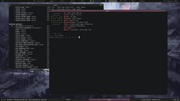
You can also try:
fastfetch --color-keys bluein a terminal and see of the color changes.
Just checked, the command will accept quoted hexcode.
fastfetch --color-keys "#44ffff"You must unlearn what you have learned.
-- yoda
Online
#7 Today 00:01:53
- hhh
- Hercule Poirot

- From: Belgium
- Registered: 2015-09-17
- Posts: 17,518
- Website
Re: fastfetch - Changing the dull red!
I might not be understanding (I've never looked closely at fastfetch), but it looks to me like you've defined hardly anything in your "display" section, so it's defaulting to "title":"red"?
"display": {
    "separator": ": ",     // Separator between keys and values
    "color": {
        "keys": "blue",    // Key color
        "title": "red"     // Title color
    },
    "key": {
        "width": 12,       // Aligns keys to this width
        "type": "string"   // See below
    },
    "bar": {
        "width": 10,       // Width of percentage bars
        "char": {
            "elapsed": "■", // Character for elapsed portion
            "total": "-",    // Character for total portion
        },
    },
    "percent": {
        "type": 9,         // See below
        "color": {
            "green": "green",
            "yellow": "light_yellow",
            "red": "light_red"
        }
    }
}
https://github.com/fastfetch-cli/fastfe … figuration
And @PackRat is right, you can enter hexcodes instead of "cyan" or whatever.
Why why why why?!!???
Offline
#8 Today 00:38:29
- PackRat
- jgmenu user Numero Uno
- Registered: 2015-10-02
- Posts: 3,061
Re: fastfetch - Changing the dull red!
@hhh - I am pretty sure the default texr color is white (shade of gray). Look at my screenshots, all white text; I don't define any color codes. The various distro logos are hard coded for color.
Maybe I'm wrong. I'll have to run fastfetch without a user config file and see what colors show up.
Somewhere @sleekmason is sourcing a file or line of code to color the headings red.
@S11 may need to join the Lilidog Sourceforge forum if we can't reverse engineer this.
You must unlearn what you have learned.
-- yoda
Online
#9 Today 00:57:58
- hhh
- Hercule Poirot
- From: Belgium
- Registered: 2015-09-17
- Posts: 17,518
- Website
Re: fastfetch - Changing the dull red!
Just playing whith it now, "title" is 'sector11@soxdog", "keys" is what he should change. Without adding a display section to my config, the keys are red. The color boxes at the bottom is what noctalia-shell is setting for me and are based on the wallpaper.
-edit- Bottom one is with the display section included.
Last edited by hhh (Today 01:06:45)
Why why why why?!!???
Offline
#10 Today 01:57:19
- PackRat
- jgmenu user Numero Uno
- Registered: 2015-10-02
- Posts: 3,061
Re: fastfetch - Changing the dull red!
@hhh -
You found it. Add the key color in the display section. @S11 can change the key and percent colors with those settings. Apparently, the default key color for Debian is red, for Void it is white. Difference in packaging, I guess.
I added a display section and green key color:
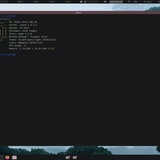
{
  "$schema": "https://github.com/fastfetch-cli/fastfetch/raw/dev/doc/json_schema.json",
  "logo": {
    "source": "void2_small",
    "padding": {
      "top": 0,
      "left": 2,
      "right": 2
    }
  },
"display": {
    "separator": ": ",     // Separator between keys and values
    "color": {
        "keys": "#739373",    // Key color
        "title": "red"     // Title color
    },
    "percent": {
        "type": 9,         // See below
        "color": {
            "green": "#3e8c58",
            "yellow": "light_yellow",
            "red": "light_red"
        }
    }
},
  "modules": [
//    "title",
//    "separator",
    "os",
//    "host",
    "kernel",
    "uptime",
    "packages",
    "shell",
//    "display",
    "de",
    "wm",
    "wmtheme",
    "theme",
    "icons",
//    "font",
//    "cursor",
//    "terminal",
//    "terminalfont",
//    "cpu",
//    "gpu",
    "CPUUsage",
    "memory",
//    "swap",
//    "disk",
//    "localip",
//    "battery",
//    "poweradapter",
//    "locale",
    "break",
//    "colors"
  ]
}
You must unlearn what you have learned.
-- yoda
Online