![[BunsenLabs Logo]](/img/bl.svg)
You are not logged in.
- Topics: Active | Unanswered
#1 2026-07-28 07:03:50
- johnraff
- nullglob

- From: Nagoya, Japan
- Registered: 2015-09-09
- Posts: 13,491
- Website
bunsen-configs-wayland-plugin available for testing
The long-promised Wayland plugin is finally ready for first trials. 
There's a new package in the repos bunsen-configs-wayland-plugin and by installing that, people running BL Carbon should get a "Bunsenlabs Wayland" option at the lightdm login screen. 
First, it might be a good idea to make a backup of your current xfce4-panel settings, just in case: User Settings > Xfce4-panel > xfce4-panel Profiles
To get this with the minimum disruption: first do a regular apt update/upgrade so bunsen-configs gets upgraded to 13.7.
Then log out and back in. You will get some popups about overwriting user config files - if you haven't made many changes to your desktop since installing then it will probably be OK to click OK on each, otherwise give it some thought, look at the diffs and make your decision. Anyway it will make backups of your files before overwriting them.
One case though: ~/.config/bunsen/autostart: if you are starting up xfce4-clipman there then even if you decline the offer to overwrite the file you should comment out that line. The panel will be configured to use xfce4-clipman-plugin, and starting up clipman directly from autostart will break the new panel configs. The clipman plugin uses a different icon from clipman in the systray, but it works the same. The important point is that the systray clipman does not work on Wayland while the clipman panel plugin works on both X11 and Wayland. If you get in a mess over the panel configs with this then you can always go in and fix it up manually using the menu User Settings > Xfce4-panel > xfce4-panel Preferences, to add the clipman plugin.
Once bunsen-configs has upgraded to 13.7, probably best to logout/in one more time before doing 'sudo apt install bunsen-configs-wayland-plugin'.
Log out again and you should see the "Bunsenlabs Wayland" option at the lightdm login screen. Give it a try!
---
In fact, there is still work to do, in particular the session startup sequence goes through the Debian shell snippets in /etc/X11/Xsession.d and we need a new approach to that so the useful bits are still picked up but the X11-only stuff is not. (I've already got an idea how we can do that.) ~/.xsession-errors still has a log which might give you some hints. At the very least it should start "Wsession: Wayland session started for <user> at <date>..."
For now, please post any glitches you find (I'm sure there are plenty) and we can list them up here.
Last edited by johnraff (2026-07-29 07:05:09)
...elevator in the Brain Hotel, broken down but just as well...
( a boring Japan blog (currently paused), now on Bluesky and Mastodon, there's also some GitStuff )
Offline
#2 2026-07-29 00:59:15
- hhh
- Hercule Poirot

- From: Belgium
- Registered: 2015-09-17
- Posts: 17,543
- Website
Re: bunsen-configs-wayland-plugin available for testing
Damn, I just deleted my testing partition. 
Look for feedback from me this weekend.
Why why why why?!!???
Offline
#3 2026-07-29 07:02:10
- johnraff
- nullglob
- From: Nagoya, Japan
- Registered: 2015-09-09
- Posts: 13,491
- Website
Re: bunsen-configs-wayland-plugin available for testing
Looks just like X11 Carbon:
Sorry imgbb trimmed off xfce4-panel in the thumbnail - it's there in the full-sized linked image.
...elevator in the Brain Hotel, broken down but just as well...
( a boring Japan blog (currently paused), now on Bluesky and Mastodon, there's also some GitStuff )
Offline
#4 2026-08-03 15:35:22
- unklar
- Back to the roots 1.9

- From: #! BL
- Registered: 2015-10-31
- Posts: 3,108
Re: bunsen-configs-wayland-plugin available for testing


Worked as described. 
Since there are no applications yet stored in the menu, keepassxc and LocalSend a were started from the terminal/Alt+F2(with varying degrees of success).
Thanks, @john!
Offline
#5 2026-08-04 09:07:15
- unklar
- Back to the roots 1.9
- From: #! BL
- Registered: 2015-10-31
- Posts: 3,108
Re: bunsen-configs-wayland-plugin available for testing
^I find the color change to yellow/orange of the BL icon particularly cool when selecting the desktop.
Perhaps this could also be continued in the default Conky to show the user at a glance which BL desktop they are currently in. 
To do this, this line would have to be inserted next to SYSTEM in the Default/Carbon-Conky:
S Y S T E M ${alignr}${execpi 86400 inxi -S | tail -n 1 | head -n 3 | awk '{print $2}'}❯ inxi -S
System:
Host: carbon3 Kernel: 6.12.100+deb13-amd64 arch: x86_64 bits: 64
Desktop: LabWC v: N/A Distro: BunsenLabs GNU/Linux 13 (Carbon)or, do I shoot sparrows with cannons here using inxi. Is there an easier way to read the desktop in use?
I could now only show an image from "Openbox" because in LabWC both xfce4-screenshooter and grim -slurp do not take images.
Offline
#6 2026-08-04 09:12:51
- unklar
- Back to the roots 1.9
- From: #! BL
- Registered: 2015-10-31
- Posts: 3,108
Re: bunsen-configs-wayland-plugin available for testing
^Maybe I'm too far ahead and @johnraff wants something different first...
Suspend mode works well. However, the user sees the desktop he left for a second and then the PW login mask.
Offline
#7 2026-08-04 15:13:26
- DeepDayze
- Like sands through an hourglass...
- From: In Linux Land
- Registered: 2017-05-28
- Posts: 2,001
Re: bunsen-configs-wayland-plugin available for testing
^I find the color change to yellow/orange of the BL icon particularly cool when selecting the desktop.
Perhaps this could also be continued in the default Conky to show the user at a glance which BL desktop they are currently in.
To do this, this line would have to be inserted next to SYSTEM in the Default/Carbon-Conky:S Y S T E M ${alignr}${execpi 86400 inxi -S | tail -n 1 | head -n 3 | awk '{print $2}'}❯ inxi -S System: Host: carbon3 Kernel: 6.12.100+deb13-amd64 arch: x86_64 bits: 64 Desktop: LabWC v: N/A Distro: BunsenLabs GNU/Linux 13 (Carbon)or, do I shoot sparrows with cannons here using inxi. Is there an easier way to read the desktop in use?
I could now only show an image from "Openbox" because in LabWC both xfce4-screenshooter and grim -slurp do not take images.
Any alternative screenshooters available that work on Wayland?
Real Men Use Linux
Offline
#8 2026-08-04 16:02:01
- unklar
- Back to the roots 1.9
- From: #! BL
- Registered: 2015-10-31
- Posts: 3,108
Re: bunsen-configs-wayland-plugin available for testing
Any alternative screenshooters available that work on Wayland?
Sorry, I spelled that wrong.
Both tools, xfce4-screenshooter and grim/slurp, take pictures of the entire desktop. What didn't work was "selecting with the mouse", i.e. a specific area.
Of course there are alternatives, but I haven't tried them because grim and slurp satisfy me.
See here and that's definitely not all:
https://github.com/natpen/awesome-wayland#screenshots
Offline
#9 2026-08-05 01:21:43
- johnraff
- nullglob
- From: Nagoya, Japan
- Registered: 2015-09-09
- Posts: 13,491
- Website
Re: bunsen-configs-wayland-plugin available for testing
Thanks for the feedback!
...xfce4-screenshooter and grim/slurp, take pictures of the entire desktop. What didn't work was "selecting with the mouse", i.e. a specific area.
xfce4-screenshooter is known to only do full-screen shots when running on Wayland.
But the grim+slurp combination for selecting part of the desktop with the mouse worked OK for me.
Did you try the key combo Ctrl+Print? Or this command directly:
grim -g "$(slurp)"But there doesn't seem to be a way on Wayland to do a screenshot of the "active window". I use that a lot, but it seems to be very difficult to do on Wayland.
Last edited by johnraff (2026-08-05 01:50:49)
...elevator in the Brain Hotel, broken down but just as well...
( a boring Japan blog (currently paused), now on Bluesky and Mastodon, there's also some GitStuff )
Offline
#10 2026-08-05 01:34:37
- johnraff
- nullglob
- From: Nagoya, Japan
- Registered: 2015-09-09
- Posts: 13,491
- Website
Re: bunsen-configs-wayland-plugin available for testing
I find the color change to yellow/orange of the BL icon particularly cool when selecting the desktop.
Glad you like it! In fact I just threw that yellow icon in as a placeholder until someone more graphically gifted came up with a cool BunsenLabs-Wayland icon that looked OK at the very small size that lightdm uses.
Perhaps this could also be continued in the default Conky to show the user at a glance which BL desktop they are currently in.
...or, do I shoot sparrows with cannons here using inxi. Is there an easier way to read the desktop in use?
Two things here:
1) I may be wrong but I understood from looking at the conky github that it wasn't really ready for Wayland yet. That's why I just left it out of the plugin for now. It might end up that we need a separate conky for wayland anyway, which would make it unnecessary to do any special tests for X11 vs wayland.
2) There is a very easy way for any script to test if it's running on Wayland or not: check the BUNSEN_SESSION_TYPE environment variable, eg:
case "$BUNSEN_SESSION_TYPE" in
x11)
    do this
    ;;
wayland)
    do something else
    ;;
*)
    oops...
    ;;
esac
In fact there are many ways to test for a wayland/x11 session, but the above environment variable is set by the BunsenLabs session itself, so should be reliable.
...elevator in the Brain Hotel, broken down but just as well...
( a boring Japan blog (currently paused), now on Bluesky and Mastodon, there's also some GitStuff )
Offline
#11 2026-08-05 01:44:12
- johnraff
- nullglob
- From: Nagoya, Japan
- Registered: 2015-09-09
- Posts: 13,491
- Website
Re: bunsen-configs-wayland-plugin available for testing
Since there are no applications yet stored in the menu, keepassxc and LocalSend a were started from the terminal/Alt+F2(with varying degrees of success).
The goal for the Wayland plugin will be to have all the items in the standard X11 jgmenu menu working as-is in Wayland too, or else replaced by something else that does work. The pipemenus can probably all be rewritten to test for x11/wayland and do the right thing (some already have been).
I was pleasantly surprised to find that gmrun worked fine on Wayland just as it is, so the Alt+F2 keybind too.
Alt+F3 had to be switched from dmenu, which does not work on Wayland, to a previuusly unknown (to me) app called tofi, which does. The tofi config needs polishing to make it look like the BL dmenu, but it seems to do the job of finding and running apps.
As many keybinds as possible should work exactly the same on Wayland using labwc as they do on X11 using openbox.
If anyone finds one that doesn't work, please post here and I'll start a TODO list in the Original Post in this thread.
...elevator in the Brain Hotel, broken down but just as well...
( a boring Japan blog (currently paused), now on Bluesky and Mastodon, there's also some GitStuff )
Offline
#12 2026-08-05 01:48:49
- johnraff
- nullglob
- From: Nagoya, Japan
- Registered: 2015-09-09
- Posts: 13,491
- Website
Re: bunsen-configs-wayland-plugin available for testing
Suspend mode works well. However, the user sees the desktop he left for a second and then the PW login mask.
This seems to be a long-standing issue with lightdm, and not a good thing at all because it shows whoever is at the controls a quick view of the previous desktop even if they aren't the session owner. Nobody seems to be doing anything about it, so the only workaround is not to have any sensitive information visible when you suspend or lock the session. This has been the case for years I think.
...elevator in the Brain Hotel, broken down but just as well...
( a boring Japan blog (currently paused), now on Bluesky and Mastodon, there's also some GitStuff )
Offline
#13 2026-08-05 11:21:18
- unklar
- Back to the roots 1.9
- From: #! BL
- Registered: 2015-10-31
- Posts: 3,108
Re: bunsen-configs-wayland-plugin available for testing
Thanks for the feedback!
unklar wrote:...xfce4-screenshooter and grim/slurp, take pictures of the entire desktop. What didn't work was "selecting with the mouse", i.e. a specific area.
xfce4-screenshooter is known to only do full-screen shots when running on Wayland.
But the grim+slurp combination for selecting part of the desktop with the mouse worked OK for me.
Did you try the key combo Ctrl+Print? Or this command directly:grim -g "$(slurp)"But there doesn't seem to be a way on Wayland to do a screenshot of the "active window". I use that a lot, but it seems to be very difficult to do on Wayland.
I didn't know that xfce4-screenshoter only takes full screens.
The Ctrl+Print key combination only creates empty png files. Whereas Print calls up the xfce4 screenshot and a full screen can be taken.
grim and slurp need to specify the image path to be saved. I already know this from other installations with labwc, mango, hyprland, niri.
grim
or
grim - > ~/Pictures/scrot-$(date +%F_%T).png
or
grim -g "$(slurp)" - > ~/Pictures/scrot-$(date +%F_%T).png
also do the job here in BL.
Offline
#14 2026-08-05 11:49:35
- unklar
- Back to the roots 1.9
- From: #! BL
- Registered: 2015-10-31
- Posts: 3,108
Re: bunsen-configs-wayland-plugin available for testing
unklar wrote:Since there are no applications yet stored in the menu, keepassxc and LocalSend a were started from the terminal/Alt+F2(with varying degrees of success).
The goal for the Wayland plugin will be to have all the items in the standard X11 jgmenu menu working as-is in Wayland too, or else replaced by something else that does work. The pipemenus can probably all be rewritten to test for x11/wayland and do the right thing (some already have been).
I was pleasantly surprised to find that gmrun worked fine on Wayland just as it is, so the Alt+F2 keybind too.
Alt+F3 had to be switched from dmenu, which does not work on Wayland, to a previuusly unknown (to me) app called tofi, which does. The tofi config needs polishing to make it look like the BL dmenu, but it seems to do the job of finding and running apps.
As many keybinds as possible should work exactly the same on Wayland using labwc as they do on X11 using openbox.
If anyone finds one that doesn't work, please post here and I'll start a TODO list in the Original Post in this thread.
I probably need a clean reinstall.
gmrun doesn't work at all here. Alt+F3, on the other hand, does, without starting an application.
tofi shows nothing.
The key commands of the default conky on the right of the desktop all work, except for Super+v (Volume Control).
Offline
#15 2026-08-05 17:32:44
- unklar
- Back to the roots 1.9
- From: #! BL
- Registered: 2015-10-31
- Posts: 3,108
Re: bunsen-configs-wayland-plugin available for testing
But there doesn't seem to be a way on Wayland to do a screenshot of the "active window". I use that a lot, but it seems to be very difficult to do on Wayland.
OT
Interestingly, 'niri' does this with the keyboard shortcut Alt+Print for a screenshot of the active window. This is what the configuration file says:
screenshot-path "~/Pictures/Screenshot from %Y-%m-%d %H-%M-%S.png"
	Print { screenshot; }
    	Ctrl+Print { screenshot-screen; }
    	Alt+Print { screenshot-window; }
So far I haven't found where these keyboard shortcuts are defined. 
OT
Offline
#16 2026-08-07 04:24:55
- johnraff
- nullglob
- From: Nagoya, Japan
- Registered: 2015-09-09
- Posts: 13,491
- Website
Re: bunsen-configs-wayland-plugin available for testing
I didn't know that xfce4-screenshoter only takes full screens.
Right now, anyway:
https://wiki.xfce.org/releng/wayland_ro … fic_status
Active Window isn't possible with current protocols, perhaps we'll need a custom protocol for our compositor to take care of that.
The Ctrl+Print key combination only creates empty png files. Whereas Print calls up the xfce4 screenshot and a full screen can be taken.
What do you have in ~/.config/bunsen/labwc/rc.xml around line 314? Here's mine:
    <keybind key="Print">
      <action name="Execute" command="xfce4-screenshooter" />
    </keybind>
    <!-- was originally A-Print -->
    <keybind key="C-Print">
      <action name="Execute">
        <command>sh -c 'grim -g "$(slurp)"'</command>
      </action>
    </keybind>
What happens if you run
grim -g "$(slurp)"in a terminal?
grim and slurp need to specify the image path to be saved.
This can be done with an environment variable.
~/.config/bunsen/environment-wayland got added with the latest upgrade, with this line in it:
# grim will put screenshots here
export GRIM_DEFAULT_DIR=~/Pictures/screenshots
...elevator in the Brain Hotel, broken down but just as well...
( a boring Japan blog (currently paused), now on Bluesky and Mastodon, there's also some GitStuff )
Offline
#17 2026-08-07 04:31:31
- johnraff
- nullglob
- From: Nagoya, Japan
- Registered: 2015-09-09
- Posts: 13,491
- Website
Re: bunsen-configs-wayland-plugin available for testing
I probably need a clean reinstall.
That might make it easier I guess.
gmrun doesn't work at all here.
Again, how about "gmrun" in a terminal? Any error messages?
Alt+F3, on the other hand, does, without starting an application.
tofi shows nothing.
So Alt+F3 brings up something that looks like dmenu, but different colours? That will be tofi.
But clicking one of the items does nothing??
The key commands of the default conky on the right of the desktop all work...
There is no default conky for Wayland at all at the moment. If you have one it must be because you put it there somehow.
But the key commands have been set up to be as close as possible to what we have on X11 BunsenLabs, so that they all work is good news anyway.
...elevator in the Brain Hotel, broken down but just as well...
( a boring Japan blog (currently paused), now on Bluesky and Mastodon, there's also some GitStuff )
Offline
#18 2026-08-07 08:59:06
- unklar
- Back to the roots 1.9
- From: #! BL
- Registered: 2015-10-31
- Posts: 3,108
Re: bunsen-configs-wayland-plugin available for testing
unklar wrote:I probably need a clean reinstall.
That might make it easier I guess.
^Sorry, I'm stealing your time.
https://forums.bunsenlabs.org/viewtopic … 83#p152083
There was/is no clear separation of configurations. I.e. labwc is all 'homemade' and was/is located under ~/.config/labwc
I hadn't noticed the mixing of configurations at first (So, the update created this under ~/.config/bunsen/labwc). Sorry about that again. 
Calling gmrun in the terminal results in the image below.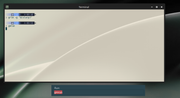
So Alt+F3 brings up something that looks like dmenu, but different colours? That will be tofi.
But clicking one of the items does nothing??
yes
so it's tofi.
I start the BL default Conky via an entry in the autostart-wayland and I meant the key commands listed there.
Offline
#19 2026-08-08 02:44:35
- hhh
- Hercule Poirot
- From: Belgium
- Registered: 2015-09-17
- Posts: 17,543
- Website
Re: bunsen-configs-wayland-plugin available for testing
But there doesn't seem to be a way on Wayland to do a screenshot of the "active window". I use that a lot, but it seems to be very difficult to do on Wayland.
grimshot, a helper for grim and slurp...
https://packages.debian.org/unstable/grimshot
EXAMPLES
An example usage pattern is to add these bindings to your sway config:
# Screenshots:
# Super+P: Current window
# Super+Shift+p: Select area
# Super+Alt+p Current output
# Super+Ctrl+p Select a window
bindsym Mod4+p exec grimshot save active
bindsym Mod4+Shift+p exec grimshot save area
bindsym Mod4+Mod1+p exec grimshot save output
bindsym Mod4+Ctrl+p exec grimshot save window
https://manpages.debian.org/testing/gri … .1.en.html
It has a dependency on sway, but I think that's fine if it works with labwc and the other wlroots compositors. The sway package is pretty light (977 kB), that's a bit bigger than labwc, I think. Make it an optional package if it's an issue of size? I haven't tested this yet, but it looks promising.
Why why why why?!!???
Offline
#20 2026-08-08 03:06:55
- johnraff
- nullglob
- From: Nagoya, Japan
- Registered: 2015-09-09
- Posts: 13,491
- Website
Re: bunsen-configs-wayland-plugin available for testing
Sorry, I'm stealing your time.
No, don't think of it that way. You're helping to turn up problems that users are likely to run into.
There was/is no clear separation of configurations. I.e. labwc is all 'homemade' and was/is located under ~/.config/labwc
I hadn't noticed the mixing of configurations at first (So, the update created this under ~/.config/bunsen/labwc).
In fact, there should be no mixing of configurations, even if you've already got a vanilla labwc session configured in ~/.config/labwc.
The BL wayland session launches labwc with a different config directory ~/.config/bunsen/labwc as you noticed.
Try running
pgrep -a labwcto see the command labwc was launched with in your session. In the BL Wayland session it should be:
/usr/bin/labwc --config-dir /home/<username>/.config/bunsen/labwc --startup '/usr/lib/bunsen/configs/bunsen-autostart'I think at one time there might have been a bug with labwc that it tried to apply configs from its default directory ~/.config/labwc as well as the config-dir passed in the command line, but I thought it got fixed. Or maybe it's that <config-dir>/autostart gets run even when a '--startup' command is passed? To avoid that causing confusion I think we should ship an empty <config-dir>/autostart file. Vanilla labwc sessions using ~/.config/labwc/autostart should be unaffected.
https://forums.bunsenlabs.org/viewtopic … 39#p145539
Calling gmrun in the terminal results in the image below.
https://i.postimg.cc/1VwGp9SC/20260807-10h03m45s-grim.png
That looks OK. Can you run commands there?
So Alt+F3 brings up something that looks like dmenu, but different colours? That will be tofi.
But clicking one of the items does nothing??yes
https://i.postimg.cc/f31S568T/20260807-10h05m42s-grim.png
so it's tofi.
And can you click on the items in that list to launch them?
I start the BL default Conky via an entry in the autostart-wayland and I meant the key commands listed there.
OK. Eventually we'll make a special Wayland conky showing the correct keybinds, though I think they'll be almost the same.
...elevator in the Brain Hotel, broken down but just as well...
( a boring Japan blog (currently paused), now on Bluesky and Mastodon, there's also some GitStuff )
Offline