![[BunsenLabs Logo]](/img/bl.svg)
You are not logged in.
- Topics: Active | Unanswered
Pages: 1
#1 2018-06-24 08:44:32
- 0-day
- Member
- Registered: 2015-10-04
- Posts: 154
change background at login
How to change background login?
Offline
#2 2018-06-24 09:40:54
- ohnonot
- ...again

- Registered: 2015-09-29
- Posts: 5,592
Re: change background at login
Offline
#3 2018-06-24 12:03:34
- doxanthropos
- Member

- Registered: 2016-01-26
- Posts: 32
- Website
Re: change background at login
In BL, you can easily find and edit the config for the login by using the menu under "System" -> "Login Settings".
Just find the file that is called lightdm-gtk-greeter.conf and edit the line that says background=something.
Offline
#4 2018-06-24 13:42:06
- 0-day
- Member
- Registered: 2015-10-04
- Posts: 154
Re: change background at login
# LightDM GTK+ Configuration
# Available configuration options listed below.
#
# Appearance:
# theme-name = GTK+ theme to use
# icon-theme-name = Icon theme to use
# background = Background file to use, either an image path or a color (e.g. #772953)
# user-background = false|true ("true" by default) Display user background (if available)
# transition-duration = Length of time (in milliseconds) to transition between background images ("500" by default)
# transition-type = ease-in-out|linear|none ("ease-in-out" by default)
#
# Fonts:
# font-name = Font to use
# xft-antialias = false|true Whether to antialias Xft fonts
# xft-dpi = Resolution for Xft in dots per inch (e.g. 96)
# xft-hintstyle = none|slight|medium|hintfull What degree of hinting to use
# xft-rgba = none|rgb|bgr|vrgb|vbgr Type of subpixel antialiasing
#
# Login window:
# active-monitor = Monitor to display greeter window (name or number). Use #cursor value to display greeter at monitor with cursor. Can be a semicolon separated list
# position = x y ("50% 50%" by default) Login window position
# default-user-image = Image used as default user icon, path or #icon-name
# hide-user-image = false|true ("false" by default)
#
# Panel:
# panel-position = top|bottom ("top" by default)
# clock-format = strftime-format string, e.g. %H:%M
# indicators = semi-colon ";" separated list of allowed indicator modules. Built-in indicators include "~a11y", "~language", "~session", "~power", "~clock", "~host", "~spacer". Unity indicators can be represented by short name (e.g. "sound", "power"), service file name, or absolute path
#
# Accessibility:
# a11y-states = states of accessibility features: "name" - save state on exit, "-name" - disabled at start (default value for unlisted), "+name" - enabled at start. Allowed names: contrast, font, keyboard, reader.
# keyboard = command to launch on-screen keyboard (e.g. "onboard")
# keyboard-position = x y[;width height] ("50%,center -0;50% 25%" by default) Works only for "onboard"
# reader = command to launch screen reader (e.g. "orca")
#
# Security:
# allow-debugging = false|true ("false" by default)
# screensaver-timeout = Timeout (in seconds) until the screen blanks when the greeter is called as lockscreen
#
# Template for per-monitor configuration:
# [monitor: name]
# background = overrides default value
# user-background = overrides default value
# laptop = false|true ("false" by default) Marks monitor as laptop display
# transition-duration = overrides default value
#
[greeter]
#background=
#user-background=
#theme-name=
#icon-theme-name=
#font-name=
#xft-antialias=
#xft-dpi=
#xft-hintstyle=
#xft-rgba=
#indicators=
#clock-format=
#keyboard=
#reader=
#position=
#screensaver-timeout=
Offline
#5 2018-06-24 14:08:26
- 0-day
- Member
- Registered: 2015-10-04
- Posts: 154
Re: change background at login
solved with lightdm-gtk-greeter-settings
Offline
#6 2018-06-24 14:08:51
- nore
- >2⁹

- From: squirrels' nest
- Registered: 2015-09-29
- Posts: 539
Re: change background at login
Like doxanthropos just told you, edit line 48 right after [greeter]. Change
#background=to something like
background=/usr/share/backgrounds/whatever.jpgMake sure to include full path to your image.
And please, please learn how to use code tags when posting!
Last edited by nore (2018-06-24 14:11:53)
Offline
#7 2018-06-25 01:12:09
- johnraff
- nullglob

- From: Nagoya, Japan
- Registered: 2015-09-09
- Posts: 13,565
- Website
Re: change background at login
There is also an "alternative" method for the specific login background image setting:
menu>System>Edit Debian Alternatives
and look for bl-login-background. You can hit the [+] button to set the path to some image as an alternative to /usr/share/images/bunsen/login/default.png
...elevator in the Brain Hotel, broken down but just as well...
( a boring Japan blog (currently paused), now on Bluesky and Mastodon, there's also some GitStuff )
Offline
#8 2018-06-25 04:14:35
- hhh
- Hercule Poirot

- From: Belgium
- Registered: 2015-09-17
- Posts: 17,634
- Website
Re: change background at login
solved with lightdm-gtk-greeter-settings
I didn't realize this had made it into stretch, nice!
Why why why why?!!???
Online
#9 2018-06-25 06:42:13
- johnraff
- nullglob
- From: Nagoya, Japan
- Registered: 2015-09-09
- Posts: 13,565
- Website
Re: change background at login
^Add to our default apps list? It would mean editing the menu too...
...elevator in the Brain Hotel, broken down but just as well...
( a boring Japan blog (currently paused), now on Bluesky and Mastodon, there's also some GitStuff )
Offline
#10 2018-06-25 08:11:58
- hhh
- Hercule Poirot
- From: Belgium
- Registered: 2015-09-17
- Posts: 17,634
- Website
Re: change background at login
I'm all about GUI settings. Put it on the discussion list.
Why why why why?!!???
Online
#11 2025-06-01 19:47:22
- GalacticStone
- Member

- From: Oort Cloud
- Registered: 2020-07-26
- Posts: 132
- Website
Re: change background at login
I know this is an old thread, but I tried looking for the following file to edit and it wasn't there. Has the name/location changed or does this method not work now?
I'm looking to change the background on the startup login screen. Thanks!
There is also an "alternative" method for the specific login background image setting:
menu>System>Edit Debian Alternatives
and look for bl-login-background. You can hit the [+] button to set the path to some image as an alternative to /usr/share/images/bunsen/login/default.png
Linux User #624832 : Chaotic Good Dudeist, retro-PC geek.
Daily Driver : Lenovo Ideapad 3 (8G RAM, 250G SSD, Boron)
Workstation : HP Slim Desktop (4G RAM, 1TB HDD, Boron)
Past hardware : Commodore 64, TRS-80, IBM 8088, WebTV
Offline
#12 2025-06-01 20:11:46
- hhh
- Hercule Poirot
- From: Belgium
- Registered: 2015-09-17
- Posts: 17,634
- Website
Re: change background at login
In the Main Menu, navigate to System Settings>Login Settings. That will open a GUI and you can change the wallpaper there. Save, close, then logout.
I actually don't know what the checkbox "Use user wallpaper if available is available" is about, but the image you use has to be moved out of your home directory and into a system directory (I use /usr/share/images). Open Thunar File Manager, type /usr/share/images and hit Enter, then right-click an empty space in that folder and choose "Open as root". Now open another instance of Thunar and navigate to the wall in your home directory and you'll be able to cut/paste or copy/paste into the root directory. At least, that's one way to do it. 
Last edited by hhh (2025-06-01 20:20:05)
Why why why why?!!???
Online
#13 2025-06-02 01:39:51
- GalacticStone
- Member
- From: Oort Cloud
- Registered: 2020-07-26
- Posts: 132
- Website
Re: change background at login
In the Main Menu, navigate to System Settings>Login Settings. That will open a GUI and you can change the wallpaper there. Save, close, then logout.
I actually don't know what the checkbox "Use user wallpaper if available is available" is about, but the image you use has to be moved out of your home directory and into a system directory (I use /usr/share/images). Open Thunar File Manager, type /usr/share/images and hit Enter, then right-click an empty space in that folder and choose "Open as root". Now open another instance of Thunar and navigate to the wall in your home directory and you'll be able to cut/paste or copy/paste into the root directory. At least, that's one way to do it.
Thanks! That did the trick.
Linux User #624832 : Chaotic Good Dudeist, retro-PC geek.
Daily Driver : Lenovo Ideapad 3 (8G RAM, 250G SSD, Boron)
Workstation : HP Slim Desktop (4G RAM, 1TB HDD, Boron)
Past hardware : Commodore 64, TRS-80, IBM 8088, WebTV
Offline
#14 2025-12-21 04:59:59
- WizardofCOR
- Member

- From: Somewhere in the Desert
- Registered: 2023-07-28
- Posts: 108
Re: change background at login
Well, since this is here...
I've always loved the Beryllium image background (and have used the same method above for aligning login screens.)
But I wanted to change my Grub menu screen to it as well.
So I cheated.
I went into /boot/grub/images/bunsen/ and renamed the "default.png" to "olddefault.png", and placed a copy of the "beryllium.png" in there, renaming that copy to "default.png".
A little lazy I know, but easily accomplishes the Task without any code manipulation. 
Just a dude playing a dude, disguised as another dude...
Offline
#15 2025-12-22 01:39:59
- hhh
- Hercule Poirot
- From: Belgium
- Registered: 2015-09-17
- Posts: 17,634
- Website
Re: change background at login
I do the same, sudo update-grub finds images in the order described here...
Image Priority
If more than one suitable image is available to GRUB 2, the following order is used to determine which image is used as the GRUB 2 background.
GRUB_BACKGROUND setting in /etc/default/grub
First image found in /boot/grub
The first image found, in this order: jpg, JPG, jpeg, JPEG, png, PNG, tga, TGA
If multiple images of the same extension, alphanumerically.Wallpaper designated in /usr/share/desktop-base/grub_background.sh (if desktop-base installed)
WALLPAPER= line in /etc/05_debian_theme * GRUB 1.98 only
The default setting is /usr/share/images/desktop-base/desktop-grub.png (the desktop-base package must be installed)
Default theme (no image): default_theme colors specified in /etc/grub.d/05_debian_theme
Note: Not all these options are available in GRUB 1.98
https://help.ubuntu.com/community/Grub2/Displays
So I just realized, but haven't tested, you can just name the new image a.jpg on BL, put it in /boot/grub and not even rename default.jpg or png or whatever. sudo update-grub, reboot
-edit- confirmed on trixie
❯ sudo update-grub
[sudo] password for animal:
Generating grub configuration file ...
Found background image: a.jpg
Found linux image: /boot/vmlinuz-6.12.57+deb13-rt-amd64
Found initrd image: /boot/initrd.img-6.12.57+deb13-rt-amd64
Found linux image: /boot/vmlinuz-6.12.57+deb13-amd64
Found initrd image: /boot/initrd.img-6.12.57+deb13-amd64
Found linux image: /boot/vmlinuz-6.12.48+deb13-rt-amd64
Found initrd image: /boot/initrd.img-6.12.48+deb13-rt-amd64
Found linux image: /boot/vmlinuz-6.12.48+deb13-amd64
Found initrd image: /boot/initrd.img-6.12.48+deb13-amd64
Warning: os-prober will be executed to detect other bootable partitions.
Its output will be used to detect bootable binaries on them and create new boot entries.
Found BunsenLabs GNU/Linux 13 (Carbon) on /dev/nvme0n1p4
Adding boot menu entry for UEFI Firmware Settings ...
done

~ took 6s
❯
Last edited by hhh (2025-12-22 01:49:32)
Why why why why?!!???
Online
#16 2025-12-22 02:38:53
- marens
- Member

- From: World without M$
- Registered: 2023-02-02
- Posts: 1,316
Re: change background at login
^ My favorites:
broken-W10.png ZZTux.png

If you are using grub themes, you also need to replace the background.png image:
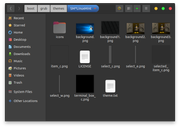
Then add to /etc/default/grub (example):
GRUB_THEME="/boot/grub/themes/SM*LinuxMint/theme.txt"And of course at the end:
$ sudo update-grub
[sudo] password for marens:
Sourcing file `/etc/default/grub'
Sourcing file `/etc/default/grub.d/init-select.cfg'
Generating grub configuration file ...
Found theme: /boot/grub/themes/SM*LinuxMint/theme.txt
Found background image: broken-W10.png
---
done
Last edited by marens (2025-12-22 02:45:13)
If people would know how little brain is ruling the world, they would die of fear.
Offline
#17 2025-12-22 05:07:41
- hhh
- Hercule Poirot
- From: Belgium
- Registered: 2015-09-17
- Posts: 17,634
- Website
Re: change background at login
Sweet wallpapers!
Why why why why?!!???
Online
#18 2025-12-22 19:22:48
- greenjeans
- Member

- Registered: 2025-01-18
- Posts: 399
- Website
Re: change background at login
ZZ-Tux, I love it!
Offline
#19 2026-02-24 03:37:22
- WizardofCOR
- Member
- From: Somewhere in the Desert
- Registered: 2023-07-28
- Posts: 108
Re: change background at login
Lovin' those BG's...!
you can just name the new image a.jpg on BL, put it in /boot/grub and not even rename default.jpg or png or whatever. sudo update-grub, reboot
LOL - no way! That's a pretty awesome discovery, Gaucho!
So it just kinda 'brute-forces' its way through alphabetically? Wild - and almost a little worrying, tbh.
Just a dude playing a dude, disguised as another dude...
Offline
Pages: 1