![[BunsenLabs Logo]](/img/bl.svg)
You are not logged in.
- Topics: Active | Unanswered
#1 2025-12-11 11:23:17
- unklar
- Back to the roots 1.9

- From: #! BL
- Registered: 2015-10-31
- Posts: 3,093
Tutorial - Debian-Hyprland


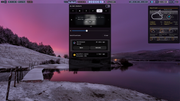
I did it again...
https://github.com/JaKooLit/Debian-Hyprland
This installation requires Debian13(trixi) or (testing/sid/unstable)
This installation was set up on a desktop (the laptop installation from May 2024 has been updated several times with the .install.sh script) and this script is from October 2025.
Why JaKooLit?
The answer is simple. This Debian Hyprland Desktop is ready to go. You don't need to search for configuration files on dozens of websites/wikis and put them together.
I prefer that at my age (because I've become lazy). And, most importantly, everything just works!
What is needed?
-the debian-netinst.iso https://www.debian.org/download
-the corresponding sha512
After downloading, open the terminal in your corresponding directory and check the
integrity of the ISO with the sha512sum, which you also downloaded:
sha512sum debian[TAB]...If both numbers match, transfer the ISO to the stick. To do this, you need to know the name of your stick in the system:
lsblk -fpor
sudo blkid -c /dev/null -o listIn my case, it was /dev/sdb1 and /dev/sdb2
We are still in the ISO directory with the terminal and enter:
sudo dd if=debian-[TAB]... of=/dev/sdb bs=4M status=progress; syncor written out by hand without TAB
sudo dd if=debian-13.2.0-amd64-netinst.iso of=/dev/sdb bs=4M status=progress; syncbecause this (snapshot) is from the current date, I took it:
sudo dd if=debian-testing-amd64-netinst.iso of=/dev/sdb bs=4M status=progress; syncThat's why only a few packages (4) were updated later when I switched to sid/unstable. 
https://www.debian.org/CD/http-ftp/
Last edited by unklar (2025-12-11 14:04:16)
Offline
#2 2025-12-11 12:47:53
- Sector11
- Mod Squid Tpyo Knig

- From: Upstairs
- Registered: 2015-08-20
- Posts: 8,399
Re: Tutorial - Debian-Hyprland
Really nice looking system there unklar.
Debian 12 Beardog, SoxDog and still a Conky 1.9er
Offline
#3 2025-12-11 14:26:52
- unklar
- Back to the roots 1.9
- From: #! BL
- Registered: 2015-10-31
- Posts: 3,093
Re: Tutorial - Debian-Hyprland
Really nice looking system there unklar.
Thanks, my friend!
Offline
#4 2025-12-11 14:29:06
- unklar
- Back to the roots 1.9
- From: #! BL
- Registered: 2015-10-31
- Posts: 3,093
Re: Tutorial - Debian-Hyprland
Note:
The dd command is a dangerous command. Without asking for confirmation(!), it will wipe out EVERYTHING on the specified medium.
Take a close look at what lsblk -fp tells you about the name of the stick. The stick does not need to be prepared with a file system or anything else, as everything will be wiped anyway. The ISO is written to the stick as a RAW file. Do not select a partition, e.g. (sdb1). This will not work later. The correct choice is sdb.
Offline
#5 2025-12-11 16:17:52
- DeepDayze
- Like sands through an hourglass...
- From: In Linux Land
- Registered: 2017-05-28
- Posts: 1,997
Re: Tutorial - Debian-Hyprland
Note:
The dd command is a dangerous command. Without asking for confirmation(!), it will wipe out EVERYTHING on the specified medium.
Take a close look at what lsblk -fp tells you about the name of the stick. The stick does not need to be prepared with a file system or anything else, as everything will be wiped anyway. The ISO is written to the stick as a RAW file. Do not select a partition, e.g. (sdb1). This will not work later. The correct choice is sdb.
Good points and the importance of selecting the CORRECT device can't be understated as you could well wipe the wrong device, so paying attention to this step is vital when using this command. Double check the parameters before you hit enter!
A known good USB stick is also vital as slight defects could cause errors when booting the newly written ISO from the stick and the checksum check can indicate if the write went OK or there was a problem.
Real Men Use Linux
Offline
#6 2025-12-11 18:12:00
- unklar
- Back to the roots 1.9
- From: #! BL
- Registered: 2015-10-31
- Posts: 3,093
Re: Tutorial - Debian-Hyprland
^ Thanks, @DeepDayze, for underlining that again.
Offline
#7 2025-12-11 18:34:12
- DeepDayze
- Like sands through an hourglass...
- From: In Linux Land
- Registered: 2017-05-28
- Posts: 1,997
Re: Tutorial - Debian-Hyprland
Hyprland I may try out on a test machine and I'll check out the config on that github. Nice desktop wallpaper @unklar
Would hyprland run under Wayland by chance? EDIT: Oh I see it does, according to the hyprland website 
Last edited by DeepDayze (2025-12-11 18:37:13)
Real Men Use Linux
Offline
#8 2025-12-11 18:48:52
- unklar
- Back to the roots 1.9
- From: #! BL
- Registered: 2015-10-31
- Posts: 3,093
Re: Tutorial - Debian-Hyprland
^ It's time for installation, and I'd like to take a stand for the Debian installer.
In my opinion, it's the best installer Debian has produced so far.
Go for it, folks!
It really does what you tell it to do. It doesn't create SWAP or install Grub without asking. And by that I mean the selection in ‘Expert mode’, which may seem spartan to some people. Only the [TAB], space bar, arrow keys, and Enter keys are needed.
After starting, we select ‘Expert install’ in ‘Advanced options’.
After selecting the language and keyboard, recognizing the installation medium, and loading the components, which is confirmed with [TAB]Next, we proceed to recognize and set up the network.
The next item is ‘Set up users and passwords’.
Attention!
Do NOT assign a root password (su).
The $USER (unklar) automatically receives sudo rights because they are the first user.
Under “Partition hard drives,” we select “Manual” as the partitioning method.
In my case, I now use the arrow keys to select “No. 5 /dev/nvme0n1p5” and confirm with Enter.
This takes me to the next panel with the preselection ‘Use as: Do not use’, which I again confirm with Enter to get to ‘EXT4 journaling file system’. Press Enter again and I now see: 'Use as: Ext4 journaling file system'. Use the arrow key to go to: 'Mount point:None' > Enter to select ‘/ - The root file system’. Finally, use the arrow key to scroll all the way down and press Enter to confirm 'Finish creating the partition'.
I use the same procedure for “No. 6 /dev/nvme0n1p6” to set up this partition as /home.
SWAP
I already have a SWAP in my system and don't need another one (and let it complain). If you need to set up a swap, then do so as described above.
Finally, we must select 'Finish partitioning and write changes to the hard disk' at the bottom and confirm with Enter.
When selecting the base system, it is important that ONLY * 'standard system utilities' is selected with the space bar(!).
Since I already have a main bootloader Grub in my system, I was able to skip the previous steps by selecting ‘Continue without bootloader’.
If you need Grub, then continue with it. The installer will ask where to install Grub and will do so correctly. Sure!
Finally, ‘Complete installation’.
---------------------- @Sector11, please read it through and correct any mistakes in my English. Thank you!
To be continued tomorrow...
Offline
#9 2025-12-12 14:02:26
- unklar
- Back to the roots 1.9
- From: #! BL
- Registered: 2015-10-31
- Posts: 3,093
Re: Tutorial - Debian-Hyprland
Since I did not install Grub during the new installation, I first have to start my system with the main bootloader Grub.
For reasons of clarity, I prefer to use the method via the file /etc/grub.d/40_custom with the following entry as root:
menuentry 'debian-hyprland' {
	insmod part_gpt
	insmod ext2
	search --fs-uuid --no-floppy --set=root 89fe80f1-6d71-452d-97de-1dbdc9b9c6ed
	linux /vmlinuz root=UUID=89fe80f1-6d71-452d-97de-1dbdc9b9c6ed
	initrd /initrd.img
}
I determined the UUID of the root partition of my new installation beforehand using the above command lsblk -fp. After that, a
sudo update-grub is necessary so that Grub adds the new installation to its menu.
It is also convenient to mount the new installation in order to make additions to fstab for the existing swap partition and an existing data partition, with mount point. I also read these UUIDs from lsblk -fp and enter them in fstab. PLEASE note: the fstab must have a blank line at the end!
Offline
#10 2025-12-12 14:40:26
- unklar
- Back to the roots 1.9
- From: #! BL
- Registered: 2015-10-31
- Posts: 3,093
Re: Tutorial - Debian-Hyprland
Time for a restart. The Grub menu welcomes me with this new entry.
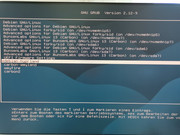
If we have done everything correctly and I have not made any mistakes in the tutorial, we will be taken to tty1, where I enter my username and password, and we are in.
unklar@debianHyprland:~$Offline
#11 2025-12-12 15:18:56
- unklar
- Back to the roots 1.9
- From: #! BL
- Registered: 2015-10-31
- Posts: 3,093
Re: Tutorial - Debian-Hyprland
1.
sudo apt updatesudo apt full-upgradesudo apt cleanupdate we the system. This is highly recommended. If a new kernel is installed, a restart is necessary in order for this kernel to be used.
2. Check whether deb-src is commented out:
cat /etc/apt/sources.listPlease also ensure that the lines
contrib non-free non-free-firmware included.
If this is not the case:
sudo nano /etc/apt/sources.listand remove the hash symbol (#) in front of deb-src. Ctrl+o > Enter > Ctrl+x to exit nano.
3. Install curl and git
sudo apt install curl gitLast edited by unklar (2025-12-12 15:35:24)
Offline
#12 2025-12-12 15:57:38
- unklar
- Back to the roots 1.9
- From: #! BL
- Registered: 2015-10-31
- Posts: 3,093
Re: Tutorial - Debian-Hyprland
The system is now ready to download and execute the script from JaKooLit.
The process took me ~60 minutes with a relatively fast processor and a fast Internet connection of ~20MiB/sec.
Do NOT execute the script as root! It will prompt you when sudo rights are needed.
The script first asks a few questions, which looks similar to the Debian installer.
You will also need to use the space bar to insert or remove an asterisk (*).
I did not select:
-sddm (I start on tty with username+password and then Hyperland)
-nvidia (because none of my computers use this card)
-asus
git clone --depth=1 https://github.com/JaKooLit/Debian-Hyprland.git ~/Debian-Hyprland
cd ~/Debian-Hyprland
chmod +x install.sh
./install.sh
Offline
#13 2025-12-12 16:36:14
- unklar
- Back to the roots 1.9
- From: #! BL
- Registered: 2015-10-31
- Posts: 3,093
Re: Tutorial - Debian-Hyprland
After restarting the computer, you will be greeted by the Debian Hyprland desktop. Before you start exploring it, here are a few tips:
sudo apt update && sudo apt install pipewire libspa-0.2-bluetoothto ensure that Bluetooth and audio work.
There are countless wallpapers and waybars to look at.
I strongly recommend copying/photographing the keybinds behind HINT!. There are also waybars that do NOT have this wealth of background information when you hover over them with the mouse. 
Have fun!
Offline
#14 2025-12-12 18:17:32
- unklar
- Back to the roots 1.9
- From: #! BL
- Registered: 2015-10-31
- Posts: 3,093
Re: Tutorial - Debian-Hyprland
Since Hyprland is in constant development and I want to be part of it, I have changed the sources from trixi/testing to sid/unstable.
If you want to do that too, here is the configuration in the new deb822 format:
e.g.
sudo nano /etc/apt/sources.list.d/debian.sourcesTypes: deb
URIs: https://deb.debian.org/debian
Suites: unstable
Components: main contrib non-free non-free-firmware
Enabled: yes
Signed-By: /usr/share/keyrings/debian-archive-keyring.gpg
Types: deb-src
URIs: https://deb.debian.org/debian/
Suites: unstable
Components: main contrib non-free non-free-firmware
Enabled: yes
Signed-By: /usr/share/keyrings/debian-archive-keyring.gpg
Types: deb
URIs: https://security.debian.org/debian-security
Suites: unstable-security
Components: main contrib non-free non-free-firmware
Enabled: yes
Signed-By: /usr/share/keyrings/debian-archive-keyring.gpgRename or comment out the old list. Then
sudo apt update && sudo apt full-upgradeinstall the two packages:
sudo apt install apt-listbugs apt-listchangesand apt will inform you about bugs and package changes from the changelog.
Last edited by unklar (2025-12-12 18:28:29)
Offline
#15 2025-12-12 18:44:18
- hhh
- Hercule Poirot

- From: Belgium
- Registered: 2015-09-17
- Posts: 17,508
- Website
Re: Tutorial - Debian-Hyprland
Glad to see I'm not the only one who can get obsessed with a tutorial! 
Why why why why?!!???
Offline
#16 2025-12-13 02:56:37
- Sector11
- Mod Squid Tpyo Knig
- From: Upstairs
- Registered: 2015-08-20
- Posts: 8,399
Re: Tutorial - Debian-Hyprland
Good tutorials are sometime hard to find.
Thank you unklar
hhh you're a master.
Debian 12 Beardog, SoxDog and still a Conky 1.9er
Offline
#17 2025-12-13 14:38:53
- unklar
- Back to the roots 1.9
- From: #! BL
- Registered: 2015-10-31
- Posts: 3,093
Re: Tutorial - Debian-Hyprland
Glad to see I'm not the only one who can get obsessed with a tutorial!
Yes.
You infected me, like a virus, it's stressful.
Good tutorials are sometime hard to find.
Thank you unklar
hhh you're a master.
Thanks for the praise!
Totally agree, @hhh is the master. Good thing we have him.
Offline
#18 2025-12-13 15:00:01
- unklar
- Back to the roots 1.9
- From: #! BL
- Registered: 2015-10-31
- Posts: 3,093
Re: Tutorial - Debian-Hyprland
^ For those who dare to take the step to sid/unstable, I would like to quote something a moderator and friend said many years ago on the siduction-forum (he was from Saskatchewan and has unfortunately been missing for several years now):
Unstable (sid) is called unstable, not because it's prone to crashes, but because of how often it changes
To make the best of sid, it is wise to full-upgrade every day, some people do it once or twice a week, after 2 weeks, you keep the pieces.The unstable (sid) repositories are updated every 6 hours. This happens in debian 4 times per day, each versus 05:00, 11:00, 17:00 and 23:00 and why full-upgrades are important on a daily basis.
eh, isn't that encouraging and convincing?
--------------------------
Edit: How do you update this featured desktop?
An irregular check of JaKooLit's GitHub page shows me this, and if you want:
when registering on tty, before entering Hyprland
cd ~/Debian-Hyprland
./install.sh
Run the installation script again.
Last edited by unklar (2025-12-13 15:26:39)
Offline
#19 2025-12-15 01:33:59
- hhh
- Hercule Poirot
- From: Belgium
- Registered: 2015-09-17
- Posts: 17,508
- Website
Re: Tutorial - Debian-Hyprland
It's not stressful until you have to pull out a recovery drive because you've wiped the boot partition. Guess how I know.
Pro tip: Create a BL LIVE USB and keep it so you don't need to find a second computer to create one on. You can work miracles with a LIVE USB and chroot.
Why why why why?!!???
Offline
#20 2025-12-15 09:46:38
- unklar
- Back to the roots 1.9
- From: #! BL
- Registered: 2015-10-31
- Posts: 3,093
Re: Tutorial - Debian-Hyprland
^^I know that too.
There is a live siduction stick on the table for this purpose. The tool on it is called “chroot-helper”. You don't even have to know the chroot commands...
Edit: What I mean to say is that you are absolutely right!
Last edited by unklar (2025-12-15 10:17:36)
Offline